 DJIVE
DJIVE
How a night runs
- 01The TV shows a QR. On DJive Standard each line says join the venue Wi-Fi and scan this code. On Online each line says scan this code. Those words follow the language you pick. Short lines then fade through what guests can do.
- 02Phones open Live, Message, Requests, and Tip the DJ (when you have a pay link). Venue login sits at the bottom for the manager.
- 03People send a shoutout, pick a track from your library, snap a photo, or tip. You can post from Messages. The manager can post a venue notice that jumps the queue.
- 04Approve from the booth, or auto-approve shoutouts and photos. Tips wait on Tips until you confirm. Venue notices go straight up.
- 05A new post is huge on the highlight first, then flies into the chat stack. Turn Fly from the chat off and it fades in place. If one is already up, this waits. Venue and DJ posts jump the queue.
- 06People react with emoji. Enough reacts, which starts at 8 in 60 seconds, puts fire on that card. On Pro you can run a pub game in the same spot. A game and a vote don't run at the same time.
On the TV
It's an overlay on the VirtualDJ output. Other video effects stay underneath, and the video keeps playing when a shoutout or photo goes up. Drag the chat, the QR, and the highlight with Edit layout. A thicker line marks each box. Drag the box to move it, or drag the line to resize it.
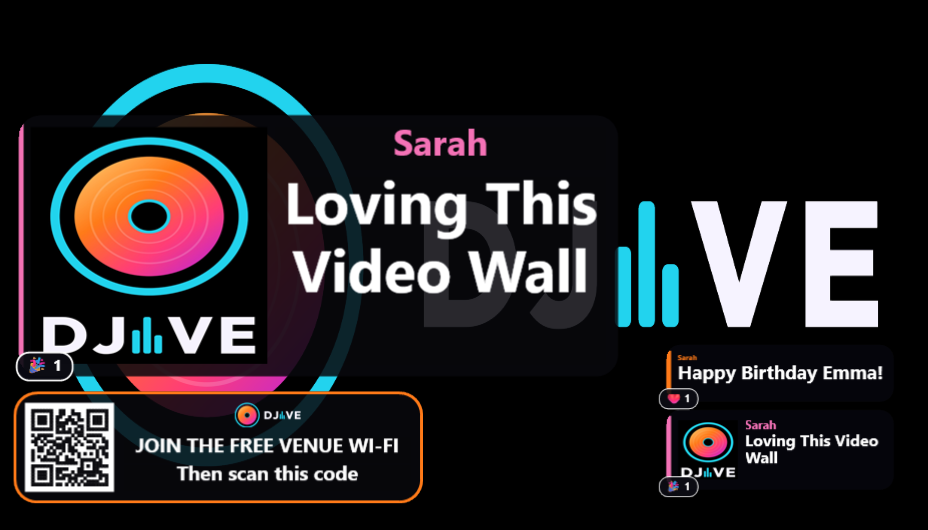
Chat stack
- Approved shoutouts, requests, photos, tips, poll results, game winners, and venue notices. colour-coded by type.
- Tips are gold. Game results are green. Venue posts get a glowing fiery border.
- A new post joins this stack after its highlight, flying into that row.
- A word that is too wide for the chat shrinks until it fits. Words stay whole.
- Pro name colours: each person can pick a colour for the night, or your type colour is used. Names must be unique.
- Enough reacts in the time you set floats fire emojis up inside that card.
Big highlight
- New posts pop large (photos even larger), stay for the time you set (3–60 seconds), then fly into chat. They do not sit in the side chat first. Turn Fly from the chat off in Settings, Display, Highlight and the card fades in place instead. A photo keeps its own shape. It is not stretched to fill the card.
- Big photo is on in Settings, Display, Highlight. A photo with no message puts the name on top and the photo large. A photo with a message sits beside the words, the same as with Big photo off. The side chat does the same. Turn Big photo off and a photo with no message keeps From and the name, centres the photo, and leaves the message blank.
- Shoutouts, photos, and tips show a thin time bar along the bottom of the card. It runs green → yellow → orange → red as the time left runs down. Emoji reacts sit above that bar. Turn it off in Settings, Display, Highlight, Time bar.
- If another post is already up, the new one waits. Venue and DJ posts jump the queue.
- Replay flies the post out of its chat row and back into it, unless Fly from the chat is off. Then it fades in place.
- The name and message grow or shrink to fill the box. A word that is too wide shrinks until it fits. Words stay whole.
- A tip rains gold coins and hearts. A venue notice has warmer type and flames. If that post is already hot, those stay off and fire emojis float up instead.
QR card
- On DJive Standard, each line says join the venue Wi-Fi and scan this code. On Online, each line says scan this code. Those words follow the language you pick. A line you have rewritten stays as you wrote it. Lines then fade through shoutouts, requests, photos, votes, games, tips, and reacts.
- The guest join address stays off the screens. it is only for you.
- After the QR: logo, then the join lines. A line along the bottom is kept for the website words. That space stays the same size whether or not anything is written there, so the join lines do not jump. If the line is empty, nothing is drawn in it.
- Free shows DJive.co.uk. Pro can swap the logo and website in Settings, Brand. The fade lines are set in Settings, Display, QR.
- If a phone shows the right address but says unreachable, the venue Wi-Fi is blocking phone-to-PC. Turn AP / client isolation off, or use the same open network as this PC.
Live vote
- Title, timer, and 2–4 bars that fill as votes come in.
- If a message is already on the highlight, the card splits (message one side, vote the other). If the wall is idle, the vote goes full-size.
- Idle shoutout replays pause until the vote ends.
- Unique winner: gold WINNER and a glow. Draw or no votes: red NO WINNER. Then the result drops into chat and stays.
- Optional picture (Pro) sits on the left like the QR card, title and bars on the right.
Pub games (Pro)
- The big highlight hides while a game is on. Chat and QR stay.
- Drag the highlight larger with Edit layout. Never at the same time as a vote.
- When it ends, the board shows the game, the game number, and who won. Losers are not named on the TV.
- Side chat gets a winners list that stays as part of the night.
- Play for fun or for a prize. DJIVE never takes money.
Look
- Word backdrops play behind the panels so names stay readable. Only one at a time, from the first trigger word.
- If the highlight is already hot, fire emojis sit on that card instead.
- Turn word backdrops, tip coins, and venue flames on or off separately in Settings, Display, Look.
- Pulse with the beat, set opacity, and pick colours for shoutouts, requests, photos, and venue notices.
- Themes for the TV and guest phones: Club, Wedding, Event, Lounge, Garden, or Neon. The booth moderator stays the same.
- Neon is another colour style, with Club, Wedding, Event, Lounge, and Garden. It uses the same layout as the others.
- On phones, Menu is Live Wall, Send Shoutout, Send Photo, Song Request, Karaoke Request, then Send a Tip. Each one opens on its own. Send Shoutout is not shared with Send Photo, and Karaoke Request is not inside Song Request. A row only shows when that option is turned on. A photo can include a message. If they leave it blank, the wall keeps From and the name, and the photo fills the card.
- With Multiple emojis on, a phone can use up to 6 different emoji on one post.
- The big card and the live chat put the icon on the left, lined up with the name, then From in light grey and the name in its colour. The icon shows whether it is a shoutout, song, photo, karaoke, or tip.
On guest phones
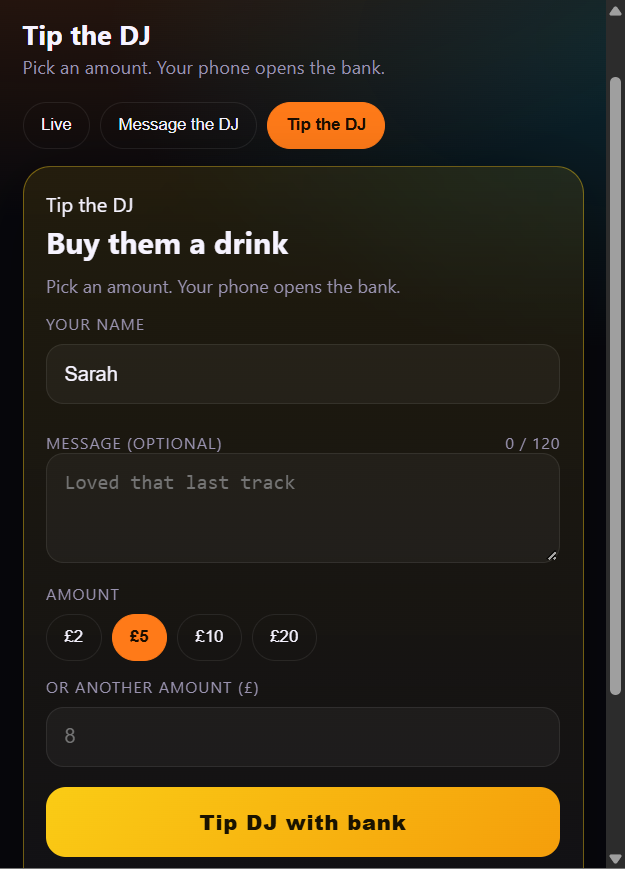
Phones on the venue Wi-Fi get Live, Message, Requests, and Tip the DJ.
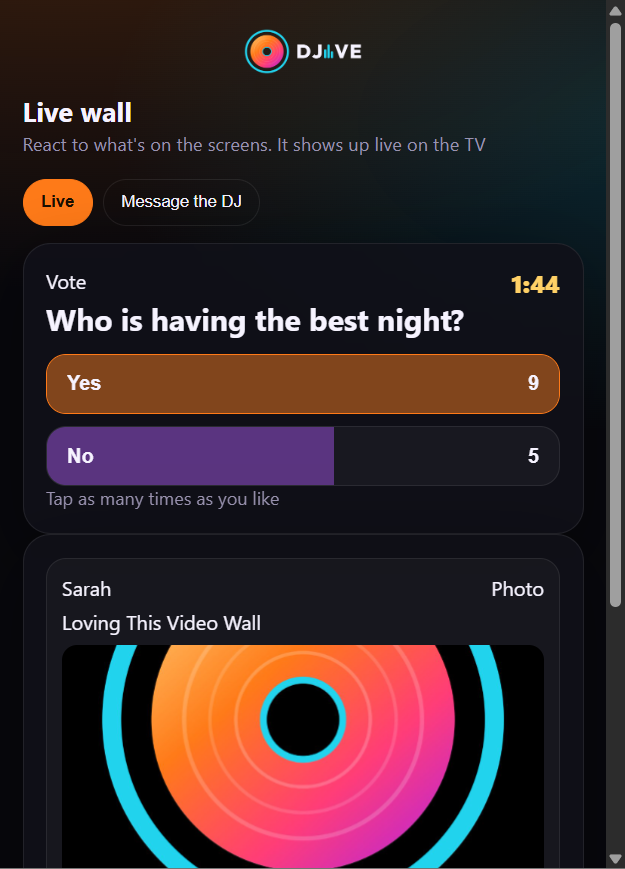
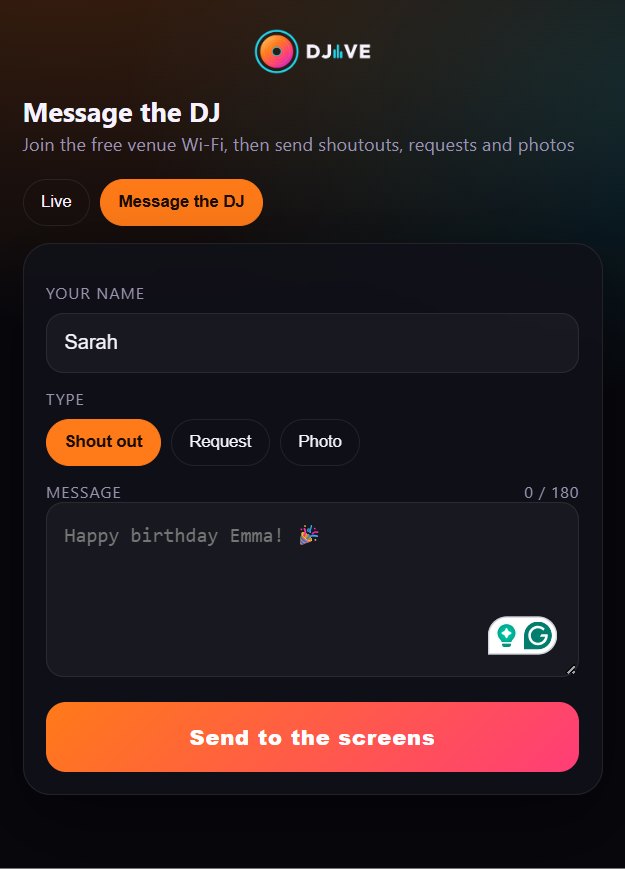
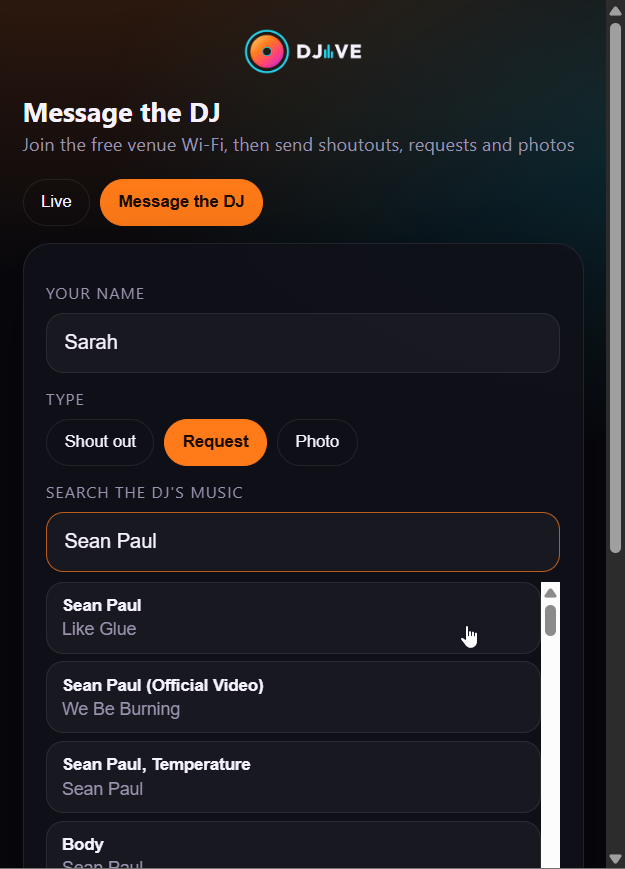
- The DJIVE logo (or your Pro logo) sits in the centre and opens the brand website. On Free, DJive.co.uk sits under it.
- Pro can put a photo and words behind the whole page from Settings, Brand.
- On Online, that photo is sent when a phone opens the page. It shows behind the page, the same as on the venue Wi-Fi. It is not kept on DJive.co.uk.
- DJive Theme is the usual page and cannot be overwritten. save a new look in the editor. If you are editing the look that is on phones, changes go live.
- Tap Live, Message, or Tip to edit that tab. Drag, resize, then Centre panel to sit a box without changing its size. Chat and tab buttons stay on the phone and stay big enough to tap.
Live
- See what is on the screens right now, including poll results after a vote ends.
- React with 👍 ❤️ 😂 🔥 👏 🎉. Pro can turn on a full emoji picker. You can turn live reactions off in Settings, Guests.
- Vote when you start a poll: one tap per phone, or unlimited if you turn that on.
- Play when you start a game: name first, then the quiz, bingo or music bingo card, or watch the prize wheel on the TV. A winner phone shows Winner, and the prize if you set one. Everyone else sees Not this time on their phone only.
Message
- Shout outName plus a short message (up to 180 characters). With name colours on they pick once and keep it. Skip it and your shoutout colour is used.
- PhotoFrom the camera roll or take one on the spot.
Requests
- Music RequestGuests search your VirtualDJ library by song or artist, including this PC and any plugged-in drive.
- Library search(Requests tab in the booth): starts on Yes so phones search your library. No means they type a song name on the same Song Request page with no search.
- As you type(library search):
tempfinds temperature. Music, and video when Video is on. - FiltersStyle, decade, Music / Video tags, and covers when VirtualDJ has them. Remixes collapse to one result. They pick a track you have.
- OnlineSong and karaoke results use the DJIVE logo for every picture, so phones are not downloading a cover for each track. On DJive Standard and Custom, a cover still shows when the library has one.
- RepeatsStack on one line. You can still search that song in VirtualDJ for another version.
- Karaoke RequestIts own search, only karaoke tracks. Same filters. Lands labelled Karaoke and does not stack with the music version of that song. Hidden while Library search is No.
Tip the DJ
- Only appears once you paste a PayPal or Bank pay-me link in Settings.
- Name, optional message, then £2 / £5 / £10 / £20 (or type another amount).
- If you set both, they get Tip DJ with PayPal and Tip DJ with Bank. DJIVE never takes the money or saves payment details.
- If wall queue is on, that tap lands on Tips so you can confirm it before the room sees it.
You can switch off Message, Requests, Music Request, Karaoke Request, or photos independently. If a type is off, it disappears from their phone.
Venue login
- A small login sits at the bottom. The manager asks you for tonight’s 5-digit PIN (under the tabs in the booth).
- They type it, set the venue name, and can upload the venue logo. The logo sits on the left of every venue notice, like a photo.
- Notices go straight on the wall. no approve step.
- Each time you start VirtualDJ you get a new PIN. The name and logo they pick are remembered. The PIN stays in the booth. It is not on the QR card or the TV.
In the booth
Two ways to run the night. Same tools. A bar under the tabs shows this week’s shoutouts, requests, votes, and tips (12/200) or Pro Plan Unlimited. Under that is tonight’s Venue PIN.
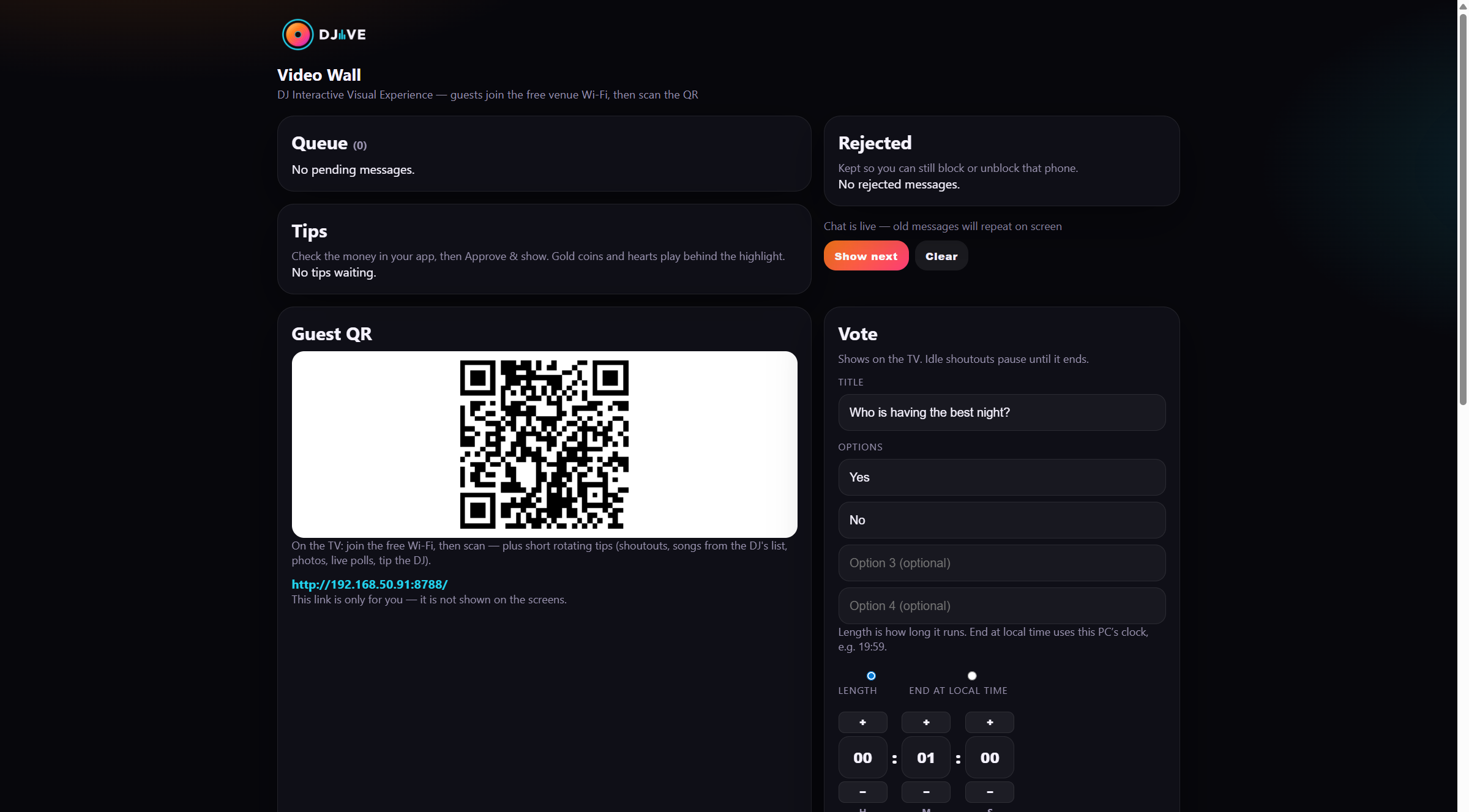
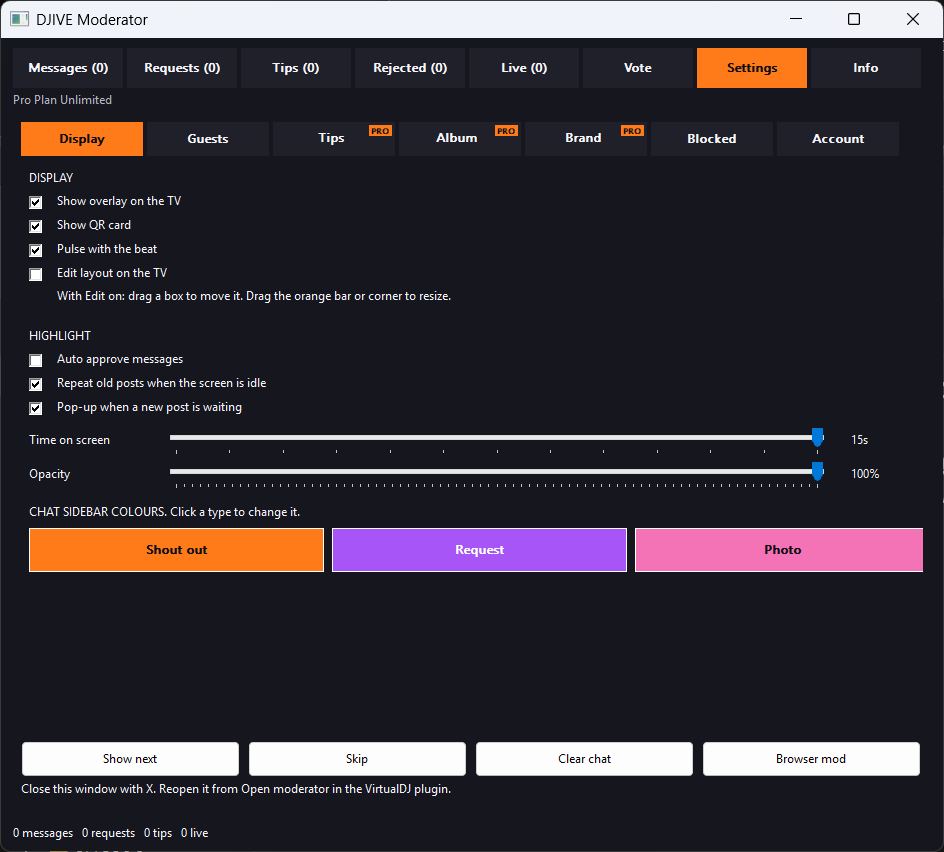
- Native moderator inside VirtualDJ (Open moderator on the plugin). Approving, starting a game, and the other booth buttons keep working in the background, so VirtualDJ keeps playing. The booth has its own taskbar button, DJIVE Moderator, with the DJIVE logo, separate from VirtualDJ. Click the new-message notice and the booth comes forward. Click VirtualDJ and the booth goes behind it. Minimize it when you are finished. The full-screen video on the other screen stays up. A new message or request flashes the DJIVE logo on that button until you open Messages or Requests, and adds New Notification on the end. A text box or a dropdown still comes forward so you can type or pick from the list.
- Browser moderator at
http://127.0.0.1:8787/modif you want it on a laptop or tablet in the booth. - Sliders are an orange bar with a round knob. Tap or click anywhere on the bar and it jumps there. Drag the knob and the number follows. The scroll wheel over a slider moves it one step.
Queue lists are card rows with a colour for shoutouts, requests, photos, tips, venue notices, and game winners.
Messages
- Type a name and message at the top, or add a photo, then Show on wall. it jumps to next on the big card.
- Shoutouts count toward this week’s limit. Photos are Pro.
- Guest posts wait in the list. A line under the list says right-click a row to interact. Approve and show is green. Reject and block are red. Requests, Tips, Live Screen, and Blocked use the same right-click list.
Requests
- Your library, live from VirtualDJ. Columns: When · Song · Qty.
- Alerts is on that page. No stops the request pop-up and the flash. The tab still counts them. Shoutouts and tips still notify.
- Silent is off until you turn it on. On means a new request still lands in the list, and that tab stays quiet. No pop-up, no flash, and Requests does not turn orange. Shoutouts and tips still notify.
- Lock list keeps each row where it is. The list does not rearrange, and the wait colour stays off, until you turn it off. Played or Refuse does not recolour a row until then.
- Library search starts on Yes so phones search your library. No means they type a song name on the same Song Request page with no search.
- Search a selected track in VirtualDJ, mark Played (green) or Refuse (red), then clear when you are done.
- Duplicate asks for the same song, including remixes, stack into one line with a count.
Live Screen
- Sits between Requests and Tips. One tab with Live and Rejected inside.
- Live — everything currently on the wall, including poll results, game winners lists, and venue notices. Show a favourite again, remove one, view the photo, or block. Reacts stay unlimited on Free.
- Rejected — kept on purpose. Restore a post you bounced too fast, or block / unblock that phone from here.
Tips
- Guest tips wait here. They do not auto-post, even if auto-approve is on.
- Check the money in your app, then Approve & show so the gold shout hits the wall with coins and hearts.
- Reject or block from here too. Free greys this tab with Purchase Pro plan to unlock.
- A PRO tag marks Tips, Album, and Brand.
Twitch
- Sits between Games and Clients. For Twitch DJ Program streams.
- Twitch check is Yes / No. Default is No. While it is off, the plugin does not read the decks for this.
- Open Twitch catalog opens Twitch’s DJ catalog in your browser (you need to be logged in there).
- Decks — four big rows for decks 1 to 4. Each shows the loaded song and Safe (green), Not safe (red), or Unknown. Tap a deck, then Check on Twitch (copies the song and opens the catalog), then Mark Allowed or Mark Not safe. Clear mark puts it back to Unknown.
- Library — search your VirtualDJ library. Filter All, Safe, Not safe, or Unknown. Select a result and mark it the same way.
- Lists — pick Restricted artists, Allowed catalog, or Not safe catalog, then Find. Restricted artists can be added, removed, or restored to the default list. Allowed / Not safe are the songs you marked on this PC.
- Safe means you marked it Allowed. Not safe means a restricted artist or a Not safe mark. Unknown means not checked yet. Twitch’s catalog stays the source of truth.
Clients
- Sits after Twitch.
- Every phone that opens the guest app gets a row and stays on that row. The row updates in place. It does not move when they change page or come back. A phone that already has a name is not listed again as the short code.
- Each phone is a card. A coloured pill shows Live, Idle, Disconnected, or Blocked. The name sits beside it. If they have not set a name, the card shows the last five characters of that phone’s ID, in capitals. The page sits on the right. Activity sits under the name.
- The pill stays green Live while the guest app is open on the phone. It turns orange Idle when the phone is still connected but the page is in the background, and red Disconnected when the phone has gone. Blocked is red too, on a darker card.
- Page is Live Wall, Send Shoutout, Send Photo, Song Request, Karaoke Request, Send a Tip, or Venue. Activity names the box: Typing a shoutout, Typing a photo, Typing a request, Typing a tip, Searching songs, Searching karaoke, Adding a photo, Voting, or Playing and the game. It clears a couple of seconds after they stop, or straight away if they leave that box.
- Along the bottom of the card, icons and a number: message, photo, song request, karaoke, poll, game, and likes. A zero is dim. A count they have actually sent is bright. Likes count each emoji they send. The numbers stay after the posts leave the queue. Community Touch counts as one game for that phone, including unlimited taps. Extra taps are not added.
- Right-click a row to Block or Unblock that phone.
Vote
Title, 2–4 answers, and Length or End at local time on this PC.
Pro can add a picture (left like the QR card). Basic and Registered grey that row.
Start / Stop. Guests vote on Live. Bars fill, shake, and pop a colour burst as they grow.
Unique winner: gold WINNER. Draw or no votes: red NO WINNER. Then the result drops into chat.
Basic has no polls. After the Registered poll is used, start greys out until next week.
Games
Pro only. Basic and Registered grey the tab with Purchase Pro plan to unlock. Fun or a prize. DJIVE never takes money.
- Guests play on venue Wi-Fi. Only this PC needs the internet for Pub Quiz and Geo Guesser.
- Start opens the join lobby straight away. If nobody has joined when the lobby ends, that game stops. Bingo with paper tickets, or Mixed, still starts. Those tickets are already in the room.
- No timer is on Bingo only. Yes hides Join time. Start still opens the lobby, with no clock. The TV says bingo is about to start. Begin game is green under Start Game. Press it when you are ready and the numbers start. The button goes. The other games use their own join time.
- Each game keeps the settings you last used. Sliders, Yes and No, prizes, ticket colours, wheel prizes, and the Music Bingo list come back after you close VirtualDJ. Quiz, Music Bingo, and Geo Guesser each keep their own join time and teams.
- A phone that never joined only sees a note to join the next game. Community Touch is the exception: every phone gets the pad, nobody has to join.
- One tab per game. While a game is running, the other game tabs stay locked. They open again when that game finishes. Start Game hides while a game is running. Pause and End stay underneath. Confirm claim and False claim appear only when a claim is waiting. Confirm claim is green. False claim is red. Next question, Play next clip, Spin wheel, and Next place move those games on. On Bingo, Call next number is on Live, beside Call 1 line. It is green when a number can be called. It is red and says Please wait while the game is starting, a claim is being checked, or a countdown is running. Open the Box uses Show offer. Raffle uses Generate winning ticket. It is green, and Raffle has no Pause. Race Game and Community Touch run themselves.
- Live Players count on the TV card. Bingo paper tickets and Mixed leave that count off. Community Touch shows Score instead.
- Optional Prize on Quiz, Bingo, Music Bingo, Geo Guesser, the prize wheel, and Race Game. On Bingo, one line, two lines, and full house each have their own prize. A winner phone shows Winner and that prize. You hand it over.
- Each game of the night gets a number (Quiz · Game 3). Same number on the TV, phones, chat, and booth. Losers are not named on the TV.
Pub Quiz
- Singles or teams. Up to 10 rounds, each with its own subject and difficulty.
- Build loads the questions before Start, for the rounds you set. Questions from is Open Trivia or My questions. Each question is listed with its answers, and the right one marked. Refresh question swaps one Open Trivia question, on that same subject and difficulty. Internet on this PC for Open Trivia. Phones stay on venue Wi-Fi.
- Open Trivia skips a question this PC has already used. When that subject and difficulty has no new questions left, Build says so and fills the rest from ones already used.
- My questions is your own quiz. Type the question, the right answer, and up to three wrong answers, and add it to a round. Each round needs as many as you set on Play. They stay on this PC. You can run that quiz again.
- Start uses that list. Change the rounds, how many questions, or Questions from, and you build again. An Open Trivia list that has already been played needs a new build. The join lobby then opens straight away.
- On Players / Teams, right-click a player to kick them, take them off a team, or add them to a team. Right-click a team to rename it or delete it. Start, Pause, End, and the Yes / No options stay as buttons.
- Phones show who picked what. After each round, running scores. At the end, a ranked list.
- Chat says Winner - Name (or Winners - on a tie).
Geo Guesser
- Pro. The tab is Geo Guesser. Singles or teams. You set how many places, up to 10, and how many seconds they have to drop a pin.
- When a game starts, the TV uses the same card. The game name is on one line. Is starting is on the line below. The steps say to scan the QR code, open the web app, and tap Join. The old title and the player count stay off that card. Phones show that same start line, without the game number above it.
- When it starts, Geo Guesser says a geo guesser game is starting, then those steps. This PC needs the internet. Phones stay on venue Wi-Fi. The photo of a real place is on the TV. A phone that has joined sees that same photo. On the phone, Look and Map sit as two steps: look at the photo, then Drop pin on map. Drag a street photo to look around, and zoom. A phone that has not joined does not see the photo. On Map, drag, zoom, and tap to drop one pin. Pinned · tap map to move. A team shares one pin.
- While they guess, the TV shows Place X of Y and Pins in (how many have dropped). After each place the TV and the phones show a world map, scaled to fit. Lines run from each orange guess to the green real place. You can zoom in on the phone. The tip of the pin is the spot. The names and distances stay inside the box. The list says how far each one was. The winner is the lowest total distance. A phone that never drops a pin is counted as the furthest away.
- With no access token, the photos are famous places. The photo line names where the picture came from.
- Build downloads the photos before the game. It uses the Places number, up to 10. Each photo shows so you can check it. Click a photo to see it full. Refresh swaps one you do not want. Start uses that set, so nothing downloads once the game is on. Build again for a new set. With an access token saved, those photos are street photos from thousands of spots around the world. With no token, they are famous places.
- Setup is where you paste a free Mapillary access token. Open the token page, sign in, copy the access token, and Save. It stays on this PC. Once that token is saved, every photo is a street photo. Famous places are not mixed in. Clear the box and Save to go back to famous places.
Open the Box
- One player and the host. The booth splits into Settings, Prizes, and Live. Set how many boxes, from 4 to 20. Prizes shows one box for each. Five boxes shows five. Twenty shows twenty. The left ones have a blue outline. The right ones have a red outline. Type each prize in the side you want. Those prizes stay for the next game, including after you close VirtualDJ. Start shuffles those prizes into the chests and makes a 5-digit code.
- Give that code to the player. They type it on their phone and tap the box they want. That one is Players Box. The opens wait until you press Continue game. Everyone else watches the TV.
- The TV keeps the chests in the middle. The blue prizes stay on the left and the red prizes stay on the right, the same as you set them. Their name is at the top, with a bar for how long they have to pick. One box at a time.
- A chosen chest opens on the TV, and the prize rises out of it. Their phone shows that prize after the screen does. When that moment ends, that prize leaves its place on the left or the right. The other amounts stay put, so the board gets a gap. Their own prize stays on the board until the end.
- If their time runs out before they pick, a box opens on its own so the game keeps going. On the booth an opened box says opened.
- Settings has the timers: seconds to choose, how long the box takes to open, how long the prize stays popped, how long they have to take an offer, and how long to wait before their box. Live is the board, the offer, and Show prizes.
- On the booth the boxes are plain. Prizes stay hidden until you press Show prizes. Press it again to hide them. You can tap a box to open it. If their time runs out, you can still open one.
- Opens, then a deal is how many boxes open before you write a deal. Type it, then Show offer. The TV puts the offer on a gold card in the middle, with the timer across the top. Their phone shows Accept in green and Reject in red, with the time running down. The TV shows what they chose when the time ends. No choice is a reject.
- Accept ends the game. The TV says they took the deal and what they won. After the wait you set, it opens their box.
- Reject sends them back to the boxes. The next offer comes after that many opens again. On the last two boxes they can swap or keep. The TV counts down 10 seconds, then their box opens. Their phone shows the prize after the screen does.
Raffle
- DJ-only. Phones watch the TV. They are not in the draw.
- Click a ticket and pick its colour. Set the numbers that colour runs from and to. + adds another ticket, with its own colour and numbers. The draw uses every ticket. Set how many seconds the countdown runs, from 1 to 30.
- Slips is off until you turn it on. On calls a whole slip instead of one number. Numbers on a slip splits each colour into groups of that size, from 2 to 20. It starts on 5. Red 1 to 50 with 5 becomes Red 1 to 5, then Red 6 to 10, and so on. A short group at the end is still one slip. Set Red 1 to 5 and Green 6 to 10, with 5 numbers on a slip, and each of those is one pull.
- Start puts a panel on the TV: a raffle is about to start. Then it says Winning ticket number is, with the bar across the card. Slips says Winning slip is. When the bar ends, the winning ticket shows. If it has a colour, the TV says Winning ticket is that colour, and the number is on the ticket. A slip shows the colour and the numbers, like Red 1-5.
- Generate winning ticket is green. It draws another one the same way. Slips says Generate winning slip. It waits until the countdown has finished. Raffle has no Pause. You draw each one yourself, then End game when you are done. Each winning ticket or slip stays on the card until you end the raffle, and a called list shows every one. The same ticket or slip is not drawn twice.
- Tickets called and Tickets left sit on the TV card. Both start on Yes. No hides that line. Slips says Slips called and Slips left. Called is how many have already come up. Left is how many are still to come, including the one on the bar.
Bingo
- Amount of bingo card numbers sits above four buttons: 15, 30, 75, and 90. It starts on 90. Timed join lobby, then numbers. Guests tick themselves. Each phone gets its own card. 15 and 30 use a 3 by 3 card. 75 uses a 5 by 5 with a free centre, and a line can be a row, a column, or a diagonal. 90 stays the usual card, and a line is a full row.
- Numbers, Live, and Players sit on the first row. Prizes, Tickets, Calling, Auto, and Event Setup sit on the second. Event Setup is on the right. Numbers is Amount of bingo card numbers, the join time, and Call by hand. Next number shows under the join time while Call by hand is off. Prizes is one line, two lines, and full house, each with its own prize to type. Tickets is paper tickets, Mixed - Paper and DJIVE Bingo Tickets, and pay for a ticket. Calling is recent numbers, highlight called, and the voice. Auto is auto dab, auto call, and auto arrange. Live and Players stay their own tabs.
- Event Setup is blue, so it stands apart from the other Bingo tabs. It is off until you turn it on. Off hides Games, Setup new game, and Game Pack. On, Games is the list, and it starts empty. Add game and Remove are there. Move up and Move down change the order. Edit game opens a saved game. The first game you add opens General, so the night is set before that game. Later games open Per game. Save game is on that menu and takes you back to the list. Game Pack saves the night you have built. Type a name and press Save pack. The list shows the saved packs. Load uses one for this event. Edit opens it so you can change the games, then press Save pack. Delete removes it. Setup new game has General and Per game. General is the same for every game. Pay for a ticket, Paper tickets, and Mixed stay only while they still apply. Paper tickets hides pay, Mixed, and the phone-card settings, and shows call on the phone. Mixed hides Paper tickets. Phone cards hide call on the phone. What stays is call by hand, next number, recent numbers, highlight called, the voice, auto dab, auto call, and auto arrange, unless paper tickets has taken the phone card away. That pay is separate from Tickets. One code covers the whole event. Paper tickets is paper only. Mixed is paper and phone tickets together. Turning one on turns the other off. Per game is the selected game: the name, 15, 30, 75, or 90, single tickets and strips, and one line, two lines, and full house, each with its own prize. Leave the name blank and it stays Game 1, Game 2, and so on. 0 means none. A strip is 6 cards, and it is hidden on 15. Turn Event on, then press Start. The first lobby stays open until you press Begin. A free game is Join once. Pay for a ticket is Generate Game Pack Code, typed once. After the first game, the screen stays on Next game. It still says to scan the QR code. New registrations are closed until the event is finished, and it shows the numbers and tickets for the next game. After that, each game puts that game’s tickets on the phone by itself, at the end of the last one and again when the next one opens. They can leave the page and come back. The tickets are still there. Each game waits in its own lobby until you press Begin. When one ends, press Start next game. New phones cannot join after the first game has started, or on any game after that, until the event is finished. The name you typed is what the room sees. The screen shows how many numbers are called and how many are left. Paper tickets and Mixed hide the player count. DJIVE tickets still show how many have joined. End game early stays available while a game is on, between games, and on the result. When the last game finishes, the event ends. It does not start again from the first game. The greyed Bingo tabs work again, and Event turns off. End game early stops the rest of the night as well.
- Pay for a ticket is off until you turn it on. On means no free card. After Start, the setup hides. Generate ticket fills that space, and the number shows large. Generate strip is there on 30, 75, and 90. It is hidden on 15. It also shows how many different full tickets exist before the same one has to be sold again. Those go out first. A ticket is one card. A strip is one number for 6 cards. On 90 numbers those six are one book: every number from 1 to 90 is on them once, and the same number is not on two of them. Each ticket sits in its own card on the phone. They can type another number and buy more. The box clears after it is added. Each number works on one phone. Generate stays on while people are joining. Turning this on turns Paper tickets off.
- When Pay for a ticket is off, and phones have a DJIVE card, Tickets has two boxes. Both start at 0, and 0 means none. Single tickets is how many single cards each phone gets when they join. A strip sits beside it on 30, 75, and 90. It is hidden on 15. That box is how many strips each phone gets. A strip is 6 cards. On 90 numbers those six have every number from 1 to 90 once. On 30 and 75 a strip is six separate cards. These boxes are there for DJIVE cards and for Mixed. They are hidden for paper tickets on their own, and while Pay for a ticket is on.
- Call by hand is off until you turn it on. On hides Next number, and you press Call next number on Live. That button is green when a number can be called. It is red and says Please wait while the game is starting, a claim is being checked, or a countdown is running. It sits beside Call 1 line. Off shows Next number, the seconds between calls, with Call by hand under it. The first number is called when the lobby ends. Those seconds are the gap after each number.
- Recent numbers is off until you turn it on. On shows the last few numbers on the TV, under the big number, and on their phones. Highlight called is on until you turn it off. On marks called numbers on their ticket. Off leaves the ticket plain until they tick a number.
- Auto dab, Auto call, and Auto arrange are off until you turn them on. They are on Auto. A phone cannot change them. Auto dab fills a called number on their ticket. Auto call calls a line, two lines, or a full house when that prize is still open. The TV shows their name. Confirm claim or False claim works the same way. Auto arrange follows the prize that is on. A line prize puts the closest line at the top. Four numbers on one line beat five spread over the card. Two lines, then a full house, take over when that prize is off or already won. Ticket 5 stays Ticket 5 when it moves to the top.
- Paper tickets is off until you turn it on. On means no card on the phone. On Live, press the prize that is open. One line, two lines, or full house. The TV pauses for a claim check. Claim verified moves on to the next prize. False claim stays on that prize. Confirm claim and False claim at the bottom stay grey. Call on the phone then shows. On means their phone can call it too, with one button: Call Line, then Call Two Lines, then Call House. When the lobby ends, the numbers still start, even if no phone has joined. Turning this on turns Pay for a ticket off, and it turns Mixed off.
- Mixed - Paper and DJIVE Bingo Tickets is off until you turn it on. On means paper tickets and phone cards in the same game. Phones still get a DJIVE card. On Live, press the button for the prize that is open. One line, two lines, or full house. The TV pauses for a claim check, the same as a phone claim. Claim verified moves on to the next prize, even if the phone cards do not have that line yet. False claim stays on that prize. Confirm claim and False claim at the bottom stay grey. Claim verified and False claim on Live check the paper ticket. The win stays on the TV, and the next number waits until it has left the screen. When the lobby ends, the numbers still start if no phone has joined. The paper tickets keep the game going. Turning this on turns Paper tickets off and takes that row away. Turn Mixed off and Paper tickets comes back.
- TV: big called number on the left, and the number board on the right. The board matches 15, 30, 75, or 90. It also shows how many numbers are called and how many are left. Paper tickets and Mixed hide the player count. DJIVE tickets still show how many have joined. When a game ends, the card says Thanks for playing, then the game name. A DJIVE winner shows their name. A paper ticket says Ticket winner. The countdown bar at the bottom is the same one as the other cards. When every number has been called, the game stays on the open prize. The screen says all numbers are called, press call. It waits for a paper call, when paper tickets are on, or for a phone to press call. It does not finish with no winner. End game early still stops it.
- Live is its own tab. Start Game opens it straight away. The number board fills in as numbers are called. The latest number is marked. While tickets are still being generated, the board stays hidden and the ticket number fills that space. When the numbers start, the board comes back.
- On a DJIVE card, one button sits at the top of the phone. Call Line while a line prize is open. Call Two Lines when that prize is done. Call House when two lines is done. Only that one shows. Paper tickets with Call on the phone uses the same button.
- Players is its own tab. It shows how many tickets each person has. Right-click a player to kick them. After the lobby, numbers start and joining locks.
- Confirm claim or False claim from the booth. A confirmed win stays on the TV, and the next number waits until that win has left the screen. A confirmed full house stays on that same card. The left side says who won a full house. That stays for a few seconds, then the game ends. One line prize allows one line winner. After that win is confirmed, it does not open another line claim. Two lines, then a full house, still run when those prizes are on.
- Calling has three voice buttons. No, Voice Numbers, and Voice Bingo Slang. No is the one it starts on. No stays quiet. Voice Numbers says the number. Voice Bingo Slang says the bingo call. Either voice also says who won. One line prize, two line prize, and full house prize are Yes or No.
Music Bingo
- Clips from your VirtualDJ library. Build from Recent plays, one of your lists, or a category. 30–90 songs.
- Clips wind to 45 seconds, 2 minutes on long tracks, or your hot cue. Each clip plays for 8–60 seconds, starting at 30. The gap between songs starts at 3 seconds. The picture on the TV and phones is the DJIVE Music Bingo mark. Song names sit in the middle of each box. The booth song list stays still while clips play. Gap between clips is in seconds. Verify on Build checks the files again if you want that, and the result shows on that page. After a game ends, that list cannot be started again. Build a new one.
- Songs is a name and artist grid. Edit either box and that is the name on the TV and on the phones. The song list stays still while clips play. A song that is not on disk is left off the list.
- Show the song on, and show songs played, are Yes / No. No makes it harder. Line prizes is 0–4, starting at 1. 0 means only a full house. Say who won is Yes / No. It starts on No. No keeps the line and full house on screen without a voice. After a line, the next song or number waits a few seconds.
- Live lists each song as it plays, with the one on now at the end. It opens when the songs start.
- Play, Build, Songs, Live, and Players. Players shows how many tickets each person has. Start sends you to Build if the song list is not ready. Build list is green. Refresh selected checks the new song on the deck before it replaces the row. The list drops anything in brackets from the song name. It keeps swapping missing files until every song is there and nothing is repeated. Singles or teams. The first song starts when the lobby ends. A team game waits after the lobby so people can make and join teams, then the first song starts. Someone not on a team cannot tick a song.
- Pay for a ticket is off until you turn it on. On means no free card. After Start, Generate ticket and Generate strip sit under the tabs. The number shows large. A ticket is one card. A strip is one number for 6 cards. They type the number and the songs show on their phone straight away. Each ticket sits in its own card. They can type another number and buy more. The box clears after it is added. Each number works on one phone. Generate stays on while people are joining.
- Guests tick songs. Line is a full row or column. A confirmed full house stays on the TV, then the game ends.
- Confirm claim / False claim same as Bingo. The next song waits until that win has left the screen. Start needs a finished list.
Prize wheel
- DJ-only. The wheel stays on the TV. Phones watch. they are not in it.
- Fill at least four of twelve prize boxes. Gold rim, coloured wedges, pointer at the top.
- Spin from the booth on the mic. It lands on the prize under the pointer. The countdown sits in the title row, so the wheel stays the same size.
- Every game card fits the highlight. Quiz, bingo, music bingo, the wheel, the race, and community touch shrink to the card, whatever size you make it. Votes and the moving games play smoothly while the video keeps running.
- Chat says This Spin Won - and the prize. You hand it out.
Race Game
- Play for fun. DJIVE never takes a bet. Lobby, odds, then the race.
- Odds: pick a runner. Bars fill like a vote. Miss the timer and you are dropped.
- Animals or race cars. 4–8 runners. Race length is 10–120 seconds. Every runner reaches the line. The race runs itself.
- Right-click a person on the race list to remove them, or confirm a winner. Winners get a code on the phone until you confirm. Chat names the horse and who picked it.
Community Touch
- Nobody joins. Pick Snake, Pong, or Breakout. First round waits 30 seconds, then the board plays. Round length starts when the board does.
- The room taps together. The board steps every half second from the button tapped most.
- Snake: arrows plus centre. Pong: up and down. Breakout: left and right.
- A loss shows the score for 10 seconds, then the next round. End stops it. Pause freezes it.
- Round length 0 (Open) runs until you end it. Every tap counts Yes counts every tap. No is one tap per phone each move.
Settings
Open Settings, then pick a tab. On/off uses green Yes / red No. Sliders match Games. Options that do not apply stay hidden until you turn the parent on.
Display
- TVOverlay, QR on the TV, beat pulse, edit layout, how solid the wall is, text size, caption around QR, and the wall theme. Text size changes chat, highlight, games, and the lines on the QR card. A word that is too wide for the big card or the chat shrinks until it fits. Words stay whole. Logos, photos, and the website line change with it, and the space they sit in changes so they stay in proportion. The QR square stays the same size. The middle of the slider is 100%, how it looked before. The ends go down to about 25% and up to about 400%. Caption around QR No leaves only the QR square on the TV card. The Edit hint only shows when Edit is Yes.
- QRSits with the other Display tabs. It is Pro. Pick one line: Wi-Fi, Shout, Song, Photo, Vote, Game, Tip, React, or Custom 1 to 5. On Online each of those says scan this code. On DJive Standard each says join the venue Wi-Fi and scan this code. Those words follow the language you pick. Change a line and tap Apply. A line you have rewritten stays as you wrote it. A note says when that line only shows, such as when photos are on. Custom 1 to 5 use On and Off. Free keeps the usual lines and this tab is locked.
- HighlightApprove by itself, Replay when quiet, New post alert, Fly from the chat, Time bar, Big photo, and how long the big card stays (3–60 seconds). Approve by itself puts a post on the wall without a check. Replay when quiet shows an old post when nothing new is waiting. New post alert shows a card on the VirtualDJ window when one arrives. Fly from the chat off fades the big card in place. On flies it from the side chat and back. Time bar Yes shows the green-to-red countdown on shoutouts, photos, and tips. Big photo Yes puts a photo with no message large, name on top. A message sits beside the words. Off keeps From and the name on a photo with no message, and centres that photo. A message sits beside the words either way.
- HotFire on a busy chat. Reacts to fire and Fire lasts only show when that is Yes.
- LookWord backdrops, tip coins, venue flames, and chat colours for shoutouts, requests, photos, and venue notices.
Guests
- Language is at the top. It starts on English. Welsh, French, Spanish, German, Italian, Polish, Portuguese, Romanian, and Arabic are there too. Phones, the TV, and the moderator use the one you pick. Buttons, labels, lists, and messages on the moderator switch with it. On a phone, Arabic reads from right to left. The lines on the TV code, such as join the venue Wi-Fi and send a shoutout, follow it. The same lines in the moderator follow it. A line you have rewritten stays as you wrote it.
- Wall rules is under that. One line each. Phones show them before a guest can send. Saving asks them to agree again.
- What phones can send (messages, requests, photos), live reactions, vote more than once, and guest name colours.
- Game notes in the chat is off until you turn it on. Off keeps winner lines, game ended, and prize claimed out of the side chat. Yes posts them again.
- Photos, Every emoji, Several emojis, Vote more than once, and Name colours are PRO. locked on Basic / Registered.
- Guest names must be unique for the night.
- Message is shoutouts. Photos stay on that tab. Requests holds Music and Karaoke. If only one of a pair is on, the sub-tabs hide and the phone opens straight into that search.
- Video, Styles, Decades, and Album art sit inside the searches. Turn a row off to hide it.
Tips
- Queue tips with Yes / No. PayPal and Bank fields only show when that is Yes. Free greys this tab until you go Pro.
Album
- Photos save to a folder you choose so you keep a night album. Open it, change it, or clear it. Pro.
Brand
- Pro: venue website and PNG logo on the QR card and guest phones. Transparent PNG. Wide 800 x 200 or square 512 x 512. Max 2 MB.
- Guest app background: drop in a photo, place photo and words on the phone, fade and darken, up to three lines of words.
- Drag the logo, Live wall, the line under it, the Menu button, chat, and venue login. Centre panel sits a box in the middle and keeps its size.
- The Menu button is the same bar phones tap. Chat stays see-through on the photo, and stays big enough to tap.
- Save a named look on this PC. DJive Theme cannot be changed. save it as another name. If you are editing the look that is on phones, changes go live.
- Free always shows DJIVE at DJive.co.uk.
Tools
- Pro. Tools opens on the tab row. Unlock Developer is the tab next to Database. Type the session password there. Database carries a Dev mark and stays locked until that password is entered. It locks again when VirtualDJ is closed.
- Database has three tabs: Check, Backups, and Duplicates. Each one keeps its own search and its own list.
- Check: pick the whole database, one drive, or one list, then Check. Files, decks, and clean each have a bar. Each track is loaded on deck 3, then deck 4. The deck is unloaded before the next track. If VirtualDJ stops answering, the check stops and keeps the broken tracks already found. Missing counts up in red on its own line. Total cleaned is the line under it. Clean sits beside those counts and removes them from that database and from playlists and lists. Total cleaned then shows in green beside it. Those numbers reset on the next check. Restart VirtualDJ after a clean so it reloads.
- Backups: pick all connected databases, or one drive, then Back up. Each backup is a zip, kept apart from the live database. The PC and each drive are kept separate. Backups stay for a month. The newest backup of each one is always kept. The list on this tab is the saved zips. Right-click a backup to restore it, delete it, or open its folder. Restart VirtualDJ after a restore so it loads that copy.
- Duplicates: Find duplicates sits on the left, Find on the right, and a search bar under that. Find looks through every connected database. The line under the bar says how many databases and songs it searched. The list is the full set. A remix or an extended mix is listed when that same version is there more than once. A different version stays off the list. The best copy stays. A video is kept ahead of a music-only file. Otherwise it is the one with the most detail and the best sound. The list shows Keep on that copy, and Drop on each weaker one, with the bitrate or the file type. Right-click a Drop row to delete that copy. Delete weaker copies removes every weaker file, on this PC and on each drive. If VirtualDJ is using a file, that one is deleted after you quit. A streaming copy is removed from the database. There is no file for that one. Quit VirtualDJ and wait a few seconds. Every database is saved after it has closed, so the weaker copies are gone when it opens again. The Keep copy stays.
Blocked
- Blocked words are at the top. The list shows every word on this PC. Get list downloads them. Add saves a word you type. Turn off ignores the selected word. Stars, when Yes, still shows a message and replaces each letter of a bad word with *.
- Blocked phones are under that. Right-click a name to unblock that phone.
IP Config
- DJive Standard uses port 8787. Online sends the guest page through DJive.co.uk. Custom is a port you type.
- Online puts a DJive.co.uk link with its own code on the QR. Phones and this PC send the guest page through that link, so a venue Wi-Fi that blocks this PC still works. The link is shown on this page. A tap, vote, shoutout, or request comes back as soon as this PC answers. The next phone opens faster. Phones use the plan you are signed in with. Pro stays unlimited.
- When you turn the effect off, leave Online, or close VirtualDJ, that DJive link stops straight away. Phones then see the DJIVE logo, a thank-you that the wall has finished, and a note to try again shortly if it was only a drop. Guest photos and the guest page are not kept there. The link only runs while DJIVE Video Wall is on.
- The choice in use is green. The others are red. Apply Change and Restart Server applies it. VirtualDJ stays open.
- Print QR shows the code first. Change the heading and the line, then Print sends that page. It is on IP Config and on the booth Guest QR. On DJive Standard and Custom that code uses this PC’s address, so a new venue can change it. On Online the code stays the same. It only works while DJIVE is on and Online is selected.
- New code is on the booth, next to that QR, and on DJive.co.uk, Video Wall. It stops the Online link and the TV shows a new one. The old code is forgotten. Shoutouts, requests, photos, and phones stay on the new code. Audit lists the change. Choose Online first. On the website the booth must be signed in with the same email. Use it if someone is abusing the old link.
- Check this PC lists the Wi-Fi name, this PC’s address, whether the chosen port is free, whether Windows Firewall allows it, and whether this PC has internet. On Online it shows the DJive link instead of a port. Green is fine. Red needs a look.
- Switching the video effect off does not drop the controller.
Go Live
- Twitch, YouTube, and Kick are links you paste. Go Live puts you on DJive.co.uk, Live. The page shows your line about the night, a QR for phones, and a Twitch, YouTube, or Kick button for each link you added. Each button opens that page in a new tab. A twitch.com address counts as Twitch. It also shows how long you have been live, how many phones are connected, and the last five things happening, such as a message or a quiz. DJIVE does not host the stream. It only sends people to the page you set.
- The button then reads Stop Live. That takes you off the page. Closing VirtualDJ takes you off as well.
- The QR on the Live page is the online code, including when the TV is on venue Wi-Fi. It says scan to join them on your phone. The code on the TV stays on the venue Wi-Fi.
- The links and the line stay for next time. Go Live starts off each time you open VirtualDJ.
Account
- Log in, paste a Pro key, or open the DJIVE site to pay.
- Log out forgets the saved email, password, and key and puts the wall back on Free.
- Discord is on DJive.co.uk, Account. Link Discord joins the DJIVE server. Registered gets the Registered tag. Pro gets the Pro tag. The tag changes when Pro starts or ends.
- Install Node lives here, and on the first-run Update screen if Node is not on this PC. When Node is ready the button reads Node installed.
Show next, skip, clear chat, and Booth page sit at the bottom of Settings, TV. The other Settings pages do not show them.
Vote
- Title and two to four answers. Length or End at local time.
- Guests can vote more than once is Yes / No (same as Settings, Guests). Optional picture is Pro.
Info
- Full guide in the booth without leaving the mix. Headings, short blocks, and numbered steps.
- Inner tabs: Start, Features, Booth, Vote, Games, Tips, Words, Help, and Update.
- Along the bottom, on the same line as this week’s shoutouts, requests, votes, and tips, a green PLUGIN UP TO DATE label when this copy matches DJive.co.uk. When a newer copy is ready, that label becomes a red UPDATE AVAILABLE. CLICK TO UPDATE button, only as wide as the words, and opens Info, Update.
- Info, Update lists each note as Change, Fix, Added, or Removed. The label is coloured. The rest of the line is white. The same list is on DJive.co.uk, Updates.
- First time, Info only shows Update. If Node is not on this PC, tap Install Node first. Nothing downloads until you tap Update. Restart VirtualDJ if the plugin itself was replaced.
- Close the moderator with X; reopen it from the plugin. A tray icon keeps it in reach.
Plans
Basic
(no account) every week: 25 shoutouts, 25 song requests, no live polls, and live reacts. Overlay, QR, and the booth moderator stay on. Locked bits grey out with a link to DJive.co.uk.
Registered
(DJIVE account) every week: 200 shoutouts, 50 song requests, 1 live poll, and live reacts. After the weekly poll is used, Vote greys out until next week.
Pro
is £10 for one month, or £10 a month until you cancel. A year is £110 for 365 days and does not renew. That saves a month against twelve payments of £10. Unlimited shoutouts, requests, and polls, plus guest photos, Tip the DJ, word animations, a picture on a poll, pub games, and your own logo and guest-app look.
Business Whitelist is the company plan. £24 a month covers 3 venues at £8 each and renews until you cancel. Each extra venue is £10 a month until you cancel that venue. Each linked computer is Pro, with your business name and logo on the software and on guest phones. After you pay, the venue panel opens on DJive.co.uk. You add the company name, the logo, and the venue names there.
- Sign inUse Settings, Account. same email as DJive.co.uk. or paste the unique key created when you pay.
- One PCA normal Pro key is on one computer at a time. The VirtualDJ plugin and Standalone on that computer share the sign-in. A DJIVE account works on both as well. Unlink that computer from Account on DJive.co.uk to move it. Quit DJIVE on the old one first. A second computer with the same key stays on Registered until you do. Business Whitelist is separate: 3 venue computers at £8 each, then £10 a month for each extra venue.
- BillingSee how many days of Pro you have left. A one-time month and a one-time year do not renew. Subscribe renews until you cancel. Complimentary licences do not need a card.
- ChecksThe plugin checks that key every 7 days. If it is not active, the wall drops back to Registered while you stay signed in, or Basic if you log out.
- CodesEnter a live code above Buy and Subscribe and tap Apply. A discount updates the price. A referral code (DJ-XXXXXX) links the payment so they earn credit when you pay.
- ReferralsIf Create code is on, open Referrals and tap it. Share the DJ-XXXXXX code or the link. Default £1 per paid signup. Credit can be redeemed for days of Pro.
- SupportOpen a ticket (Bug, General, Licence, Billing, Feature, or Other). Attach a photo under 4 MB, or an MP4 or WebM video under 50 MB. It plays in the ticket. Status: New, Pending Response, or Closed.
Live voting
Run a poll from the booth.
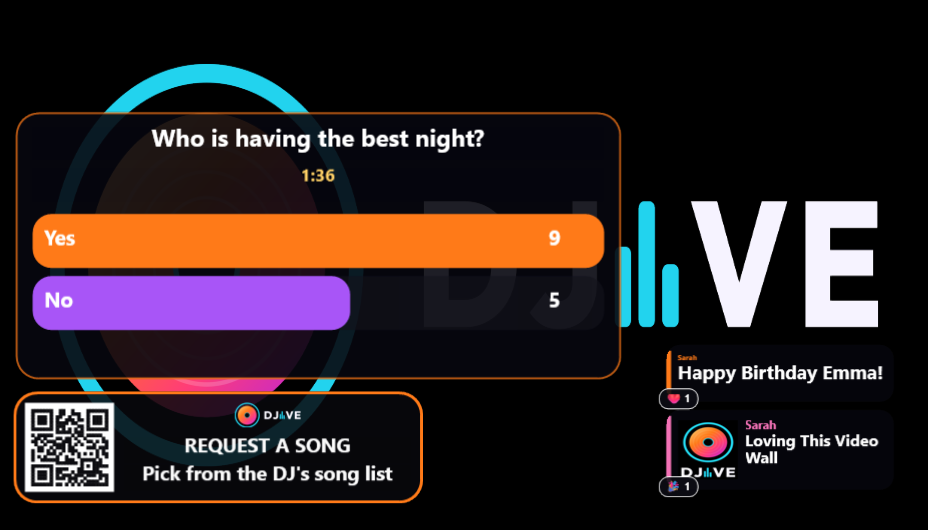
Custom title (“Who is having the best night?”, “Next anthem?”, “Bride or groom?”).
Two to four answers.
Optional picture on the poll (Pro): picture on the left, title and bars on the right. Same on phones.
Countdown on phones and on the TV: Length from a few seconds up to 24 hours, or End at local time on the DJ PC.
One vote per phone by default. Turn on Vote more than once when you want a noise-meter, not a ballot.
Unique winner: gold WINNER, losing bars ease out. Draw or no votes: red NO WINNER. Then the result drops into chat and stays.
Stop vote posts that result now and takes the live poll off the highlight.
While a vote is running, idle shoutout replay pauses so the poll stays the focus.
Tipping
Set this up once in Settings, then guests can buy you a drink from their phone.
Paste the links
you can add PayPal and Bank so people have more than one way to pay:
PayPal. In PayPal, open PayPal.Me and copy paypal.me/YourName.
Monzo. In the Monzo app, Payments → Pay me, copy monzo.me/yourname.
Revolut. Copy your Revolut.me link (revolut.me/yourname).
Starling. In the app, create a Settle Up link and paste that.
High-street banks (Barclays, HSBC, NatWest, Lloyds and the rest) do not give you a simple “pay me” web link. PayPal or a neobank is the seamless route.
Guests pick an amount, can leave a short message, then tap Tip DJ with PayPal or Tip DJ with Bank. No payment details are saved. All payments go through Bank or PayPal. DJIVE only opens the link.
- Queue for the wall: tapping Tip lands on your Tips tab. You confirm it, then their name, “tipped £5”, and any message hit the chat and the big highlight (gold, with coins and hearts).
- Turn queue off if you want the pay link without a public shout.
- The wall shows the tap you approved, not a bank confirmation. check the money in your app before Approve & show.
Word animations
If a shoutout or photo caption contains these whole words, a backdrop plays for as long as that highlight is up.
Requests and tips do not trigger them. Effects sit behind the panels so people can still read.
Only one backdrop at a time: the first trigger word in the message wins.
A tip highlight always rains gold coins and hearts. A venue notice always plays flames.
If that post is already hot (8 reacts in the first 60 seconds), those backdrops stay off and fire emojis float up instead.
Turn background animations, hot fire, or live reactions off in Settings if you want the wall quiet.
Confetti cannons from both sides
Hearts float up like balloons
Peaches and eggplants chase around the screen
Glasses burst up with streamers
Gold stars shoot up, hang, then fade
Disco balls and sparkles (harder on the beat)
Kiss marks drift across
Rings rise like bubbles with white sparkles
Flames lick up from the bottom
Flames plus lightning snaps
Yellow bursts from both sides
Slow blue rain
White flash rings expand and vanish
Gold coins rain and bounce
Shot glasses and limes bounce in from the sides
Music notes float up
Little houses drift with sparkles
White flakes fall
Circles rise
Colourful balloons float up
Pink petals fall
Rainbows arc across the screen
Gold coins
Cyan and pink sparks
Rockets shoot up, then burst into different patterns and colours
Rain and lightning
Red hearts rise
Gold sparks shoot up
Purple stars drift
Trees, Santas, snowmen, candy canes, and snow
Ghosts, pumpkins, horror figures, bats, and dripping blood
Suns, clouds, and beach umbrellas
A clock, party hats, and rockets
Horses and riders circle the screen, shooting at each other
Gold stars along the top
White sparks across the screen
A blue wave runs across
Only the first trigger word in a message plays. “glove” will not fire love. “hometown” uses the home animation; it will not false-trigger on a random “home” inside another word.
Night
Open the browser moderator, Settings, Night. The VirtualDJ moderator also has Hold, a background dropdown, and Trigger Background on Messages. Requests has Alerts, Silent, Lock list, and Library search.
Bad words
Settings, Blocked, lists them. Get list downloads swear words and other blocked words onto this PC. Add saves a word you type. They stay for the next night. Turn off ignores one word. Stars, when on, still shows a message you approve, or one that auto-approves. Each letter of a bad word becomes *. The booth keeps the real word. When Stars is off, that message waits even on auto approve.
House rules
Settings, Guests, Wall rules. One line each. The phone asks before the first send. Until they agree, they can watch and cannot send. I agree turns green and says thank you for 10 seconds, then that line goes. Clients shows a green tick once that phone has agreed. Saving asks them to agree again.
Countdown
Name it, set the time, write the line. At zero it jumps the queue. The last minute takes the highlight when the card is free.
Hold
On Messages. The button is green while it is on. The big card and the side chat leave the TV. New messages wait, then play when you press Hold again.
Join Facebook is a small button on the bottom of the booth, with the Facebook logo. Tap it to open DJIVE on Facebook. The same small button is at the top of DJive.co.uk, and the logo is beside the wordmark in the browser moderator.
Discord
Join Discord sits next to Join Facebook on the booth, small, with the Discord logo. Tap it to open the DJIVE Discord. The same small button is at the top of DJive.co.uk, and the logo is beside the wordmark in the browser moderator. On DJive.co.uk, Account, Link Discord joins that server and gives the account a tag. Registered gets the Registered tag. Pro gets the Pro tag. The tag changes when Pro starts or ends.
Wall on screen
On the bottom of the booth, next to the update line. It is a switch. Green says Wall on screen, and the white dot sits on the right. Press it and it turns red, Wall off screen, with the dot on the left. The QR, chat, highlight, vote, game, and backgrounds leave the TV. New messages wait. Press it again and they come back. The plugin stays on.
Blank
In the browser moderator, Settings, Night. Highlight and chat leave the TV. The queue stays.
Trigger Background
On Messages, pick a backdrop from the dropdown and press Trigger Background. It plays on its own, with no shoutout under it. The dropdown is every word backdrop. Rainbow draws arcs across the screen. Fireworks are rockets that shoot up and burst. Christmas, Halloween, New Year, Summer, and Western are their own scenes.
Raffle
In the browser moderator, Settings, Night. Phones tap Enter, or you draw a name from everyone on Live. Confirm before the name hits the TV. The ticket draw is the Raffle tab on Games.
Night champion
Quiz, bingo, and races can add into one score. Teams carry is its own option. Show champion posts the table.
Requests
Each row shows the decade, the BPM, and how long it has waited. Those come from the track in your VirtualDJ library. A row that has waited past the amber time turns amber in the booth only. Alerts off stops the request pop-up and the flash. The tab still counts them. Silent on means a new request still lands in the list, and Requests stays quiet. No pop-up, no flash, and that tab does not turn orange. Lock list keeps each row where it is, and the wait colour stays off until you turn it off. Library search Yes means phones search your library. No means they type a song name with no search.
Karaoke
A duet name and a step up or down sit on the request. When that song is on and the highlight is free, it says who is singing.
What you can turn off
Nothing hits the TV until you say so, unless you turn auto-approve on for shoutouts and photos. Tips still wait on the Tips tab.
Click a guest photo in the queue to check it full-size first.
Block a phone if someone is a problem. Unblock later from Settings.
Turn off photos, requests, or messages for a quieter set.
Guest photos land in your album folder, not loose on the plugin drive.
The local server starts with VirtualDJ and stops when VirtualDJ closes.
DJIVE Standalone
The same night, without VirtualDJ. The screen is its own window. The booth is DJIVE Standalone.
- Right-click a message, request, tip, rejected post, live post, or blocked guest. A short menu slides open with that row’s actions, so those lists are not lined with buttons.
- Guests type a request. It lands in Requests. There is no library search and no karaoke catalogue.
- Music Bingo stays on DJIVE VDJ Plugin, because those clips play on VirtualDJ decks.
- Shoutouts, photos, tips, votes, and the other pub games work the same way.
- A new message on the screen does not ask VirtualDJ for a window.
Built for VirtualDJ
DJIVE Video Wall is a Video FX overlay. Add it on the output that feeds the TV.
- 01Download from DJive.co.uk, Download. no account needed. Or from your DJIVE account, Downloads. Stats on that account is split into The Night and Games.
- 02Unzip the download. Open VirtualDJ, go to Options, and click the small cog at the bottom right. That opens the folder this install uses. Open Plugins64, then VideoEffect, and paste DJIVE Video Wall.dll there. Fully quit VirtualDJ, then open it again. The download is the DLL only.
- 03Enable DJIVE Video Wall on that video slot. The first time, Install Node if it is not on this PC.
- 04Tap Update to download the rest of DJIVE from DJive.co.uk. Nothing downloads until you tap it. Restart VirtualDJ if the plugin itself was replaced.
- 05Open Info, Update to see this PC version and the DJive.co.uk version. The same running list of what changed is on DJive.co.uk, Updates.
If the plugin hits a problem, it saves DJIVE Video Wall.rpt in the same folder as the DLL. Send that file to DJIVE.
If guest phones will not load, open Settings, Account and tap Install Node. When it is done the button reads Node installed.
The full feature write-up is on DJive.co.uk, Features. It is the same list as this sheet.
On the night
People use the phone they already have, on the venue Wi-Fi. The join address stays off the wall.
Requests come from your library, so you're not being asked for tracks you don't have.
A new post is big first. The side chat keeps the rest of the night.
A vote, a word on a shoutout, or a pub game gives you something to say on the mic. Birthday, shots, and dance each play their own backdrop.
Approve, refuse, played, block, next, and skip are all in the booth, inside VirtualDJ.
DJIVE is short for DJ Interactive Visual Experience.