 DJIVE

How a night runs
- 01Open the program. The first open shows a setup card. Tap Install Node if it asks, wait for the bar, and the wall opens.
- 02Drag the live window onto the TV, projector, or any screen plugged into this computer. Double-click the picture to fill that screen. Double-click again for the smaller size. The booth stays on the computer you are working from.
- 03The TV shows a QR. On DJive Standard each line says join the venue Wi-Fi and scan this code. On Online each line says scan this code. Those words follow the language you pick. Short lines then fade through what guests can do.
- 04Phones open Live Wall, Send Shoutout, Send Photo, Song Request, Karaoke Request, and Send a Tip when that option is on. Venue login sits at the bottom for the manager.
- 05Approve from the booth, or auto-approve shoutouts and photos. Tips wait on Tips until you confirm. Venue notices go straight up.
- 06A new post is huge on the highlight first, then flies into the chat stack. Turn Fly from the chat off and it fades in place. Guests react with emoji. On Pro a pub game can fill that same highlight.
On the TV
The live window is the wall. It shows a QR so people can join, a big card for whatever is happening now, and a side chat that keeps the night. When a shoutout or photo goes up, the picture keeps playing.
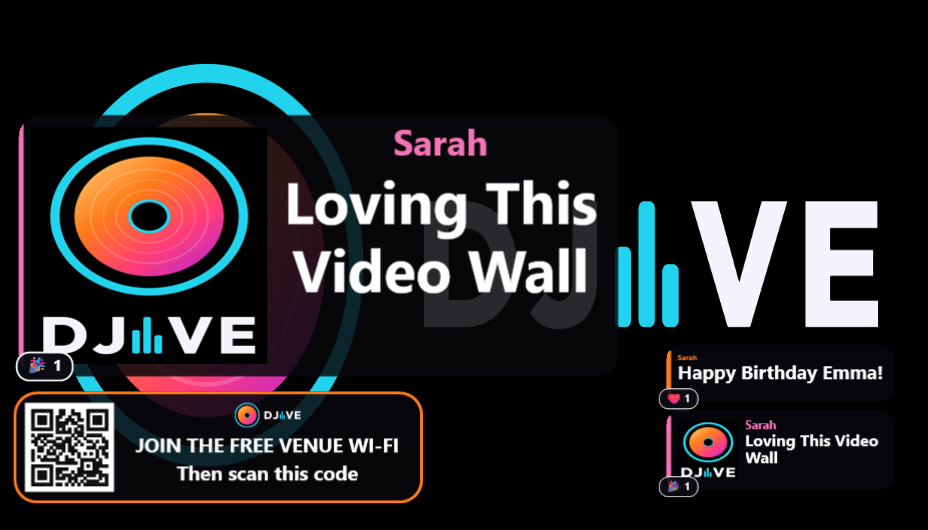
Chat stack
- Approved shoutouts, requests, photos, tips, poll results, game winners, and venue notices. colour-coded by type.
- Tips are gold. Game results are green. Venue posts get a glowing fiery border.
- A new post joins this stack after its highlight.
- Pro name colours: each person can pick a colour for the night. Names must be unique.
- Enough reacts in the time you set floats fire emojis up inside that card.
Big highlight
- New posts pop large, stay for the time you set (3–60 seconds), then fly into chat. Turn Fly from the chat off in Settings, Screen, Display, Highlight and the card fades in place.
- Big photo is on in Settings, Screen, Display, Highlight. A photo with no message puts the name on top and the photo large. A photo with a message sits beside the words.
- Shoutouts, photos, and tips show a thin time bar along the bottom. It runs green, yellow, orange, then red. Turn it off with Time bar.
- If another post is already up, the new one waits. Venue and DJ posts jump the queue.
- A tip rains gold coins and hearts. A venue notice has warmer type and flames. If that post is already hot, fire emojis float up instead.
QR card
- On DJive Standard, each line says join the venue Wi-Fi and scan this code. On Online, each line says scan this code. A line you have rewritten stays as you wrote it.
- The guest join address stays off the screens. It is only for you.
- After the QR: logo, then the join lines. A line along the bottom is kept for the website words. Free shows DJive.co.uk. Pro can swap the logo and website in Settings, Venue, Brand.
- If a phone shows the right address but says unreachable, the venue Wi-Fi is blocking phone-to-PC. Turn AP / client isolation off, or choose Online in Settings, Venue, Network.
Live vote
- Title, timer, and 2–4 bars that fill as votes come in.
- If a message is already on the highlight, the card splits. If the wall is idle, the vote goes full-size.
- Unique winner: gold WINNER. Draw or no votes: red NO WINNER. Then the result drops into chat and stays.
- Optional picture (Pro) sits on the left, title and bars on the right.
Pub games (Pro)
- The big highlight hides while a game is on. Chat and the QR stay.
- Music Bingo plays songs and videos from a folder you choose. A video shows on the TV. A music file leaves the background running, and you still hear the song.
- Community Touch is Snake, Pong, or Breakout. Every open phone gets the buttons. The first round waits so the room can scan.
- A quiz you type yourself stays on this computer. Open Trivia and Geo Guesser need the internet. Phones stay on the venue Wi-Fi.
- When a joined game ends, the board shows the game, the game number, and who won. The games page has the steps for each one.
Look
- Word backdrops play behind the panels so names stay readable. Only one at a time, from the first trigger word.
- Turn word backdrops, tip coins, and venue flames on or off in Settings, Screen, Display.
- The TV keeps a pulse you set in the layout. Set opacity, and pick colours for shoutouts, requests, photos, and venue notices.
- Themes: Club, Wedding, Event, Lounge, Garden, or Neon. The booth stays the same.
- Turn on Edit layout in Settings, Screen, Display, TV. Drag chat, the QR, and the highlight. Drag a line to resize. DJIVE remembers the layout.
On guest phones
Phones on the venue Wi-Fi get Live Wall, Send Shoutout, Send Photo, Song Request, Karaoke Request, and Send a Tip. A row only shows when you leave that option on.
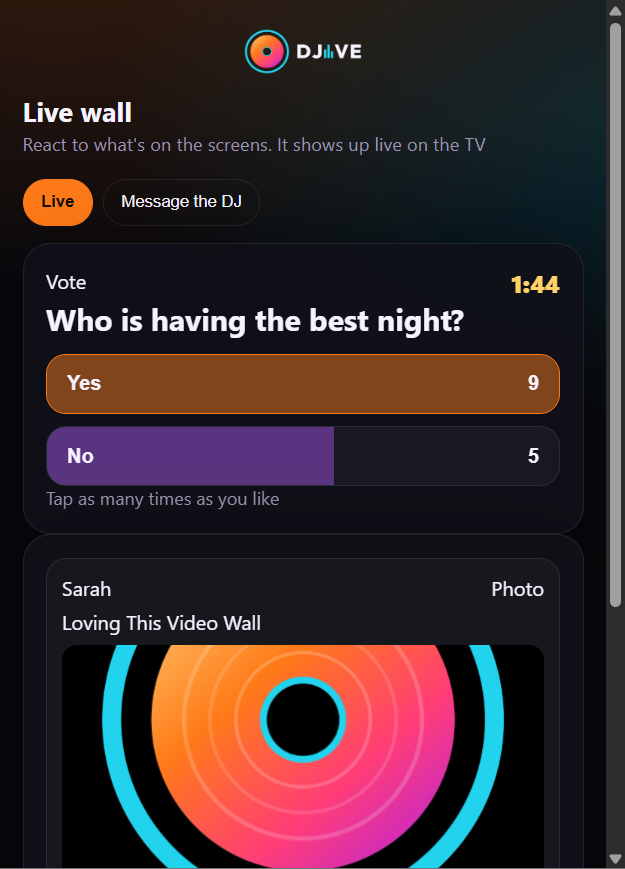
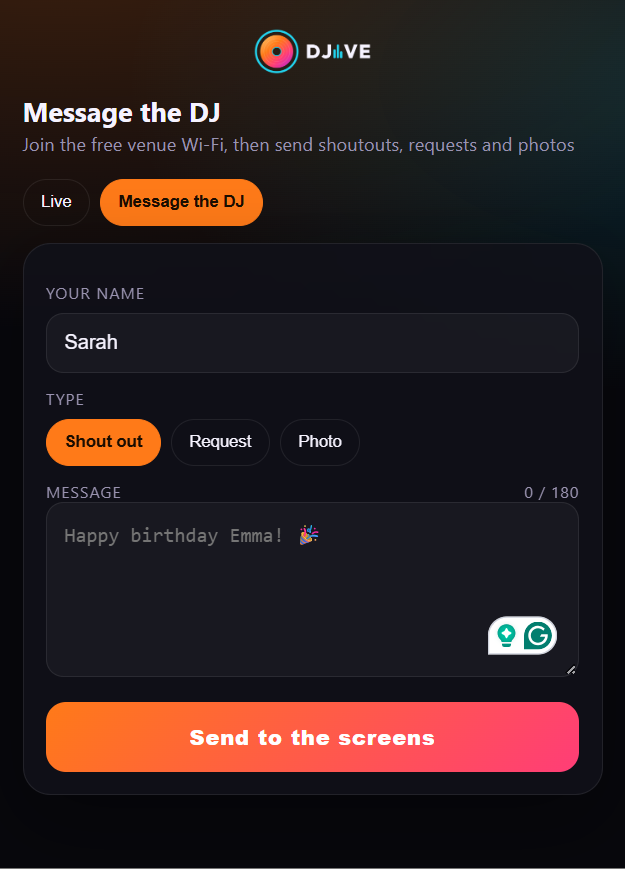
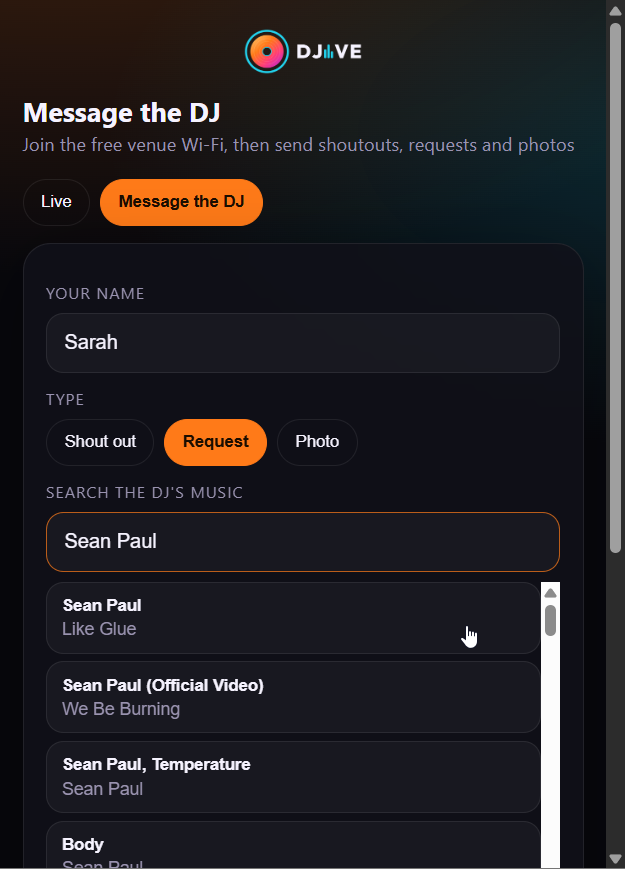
- The DJIVE logo, or your Pro logo, sits in the centre and opens the brand website. On Free, DJive.co.uk sits under it.
- Pro can put a photo and words behind the whole page from Settings, Venue, Brand.
- On Online, that photo is sent when a phone opens the page. It is not kept on DJive.co.uk.
- DJive Theme is the usual page. Save a new look in the editor. If you are editing the look that is on phones, changes go live.
Live
- See what is on the screens right now, including poll results after a vote ends.
- React with emoji. Pro can turn on a full emoji picker. You can turn live reactions off in Settings, Guests.
- Vote when you start a poll: one tap per phone, or unlimited if you turn that on.
- Play when you start a game. A winner phone shows Winner, and a claim code if you set a prize.
Message
- Shout outName plus a short message, up to 180 characters. With name colours on they pick once and keep it.
- PhotoFrom the camera roll, or take one on the spot. A photo can include a message.
Requests
- Music RequestGuests search the libraries you turned on, or they type the title when Use linked databases is off.
- As you typeThe list narrows while they type the song or artist.
- Karaoke RequestIts own row. They can add a duet and a key change. If a library you left on has karaoke tracks, they search those tracks.
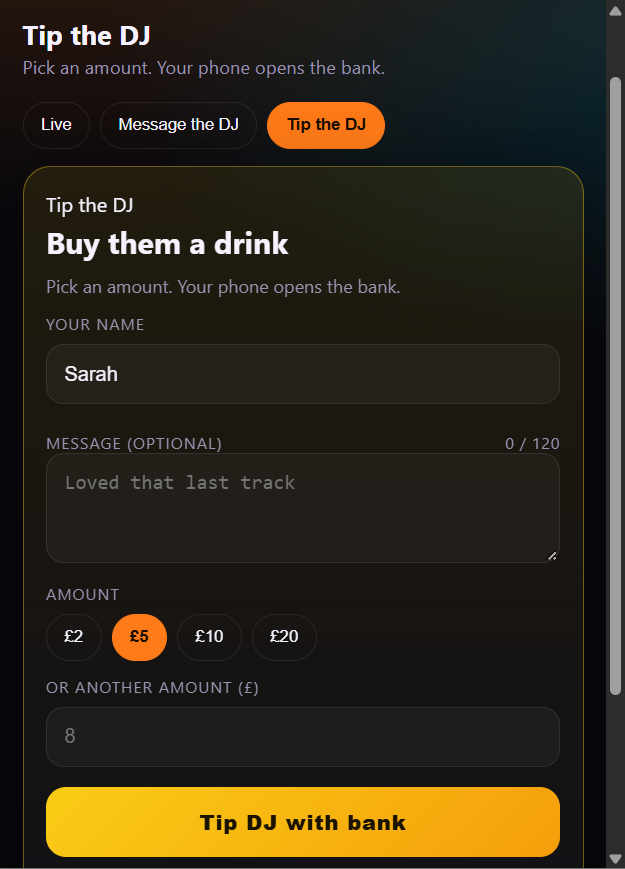
Tip the DJ
- Only appears once you paste a PayPal or Bank pay-me link in Settings.
- Name, optional message, then an amount. DJIVE opens the link. It does not take the money.
- If wall queue is on, that tap lands on Tips so you can confirm it before the room sees it.
Venue login
- A small login sits at the bottom. The manager asks you for tonight’s 5-digit PIN from the booth.
- They set the venue name and can upload the venue logo. Notices go straight on the wall.
- Each time you open DJIVE Standalone you get a new PIN. The name and logo stay. The PIN stays off the TV.
Song libraries
Settings on Requests shows a logo for each program it finds on this PC. Yes uses that database. No leaves it out. Set location picks the file when the search missed it.
VirtualDJ
Yes lets guests search that library for a song request. Serato. Yes uses the Serato database this computer has. rekordbox. Yes uses the rekordbox database this computer has. Engine DJ. Yes uses the Engine DJ database this computer has. Traktor. Yes uses the Traktor database this computer has.
Use linked databases is the switch on the Requests list. On means guests pick a song from the libraries you left on. Off means they type the title. Karaoke can search the same libraries when those tracks are there.
In the booth
The booth is the window you work in. A bar shows this week’s shoutouts, requests, votes, and tips, or Pro Plan Unlimited. Under that is tonight’s Venue PIN.
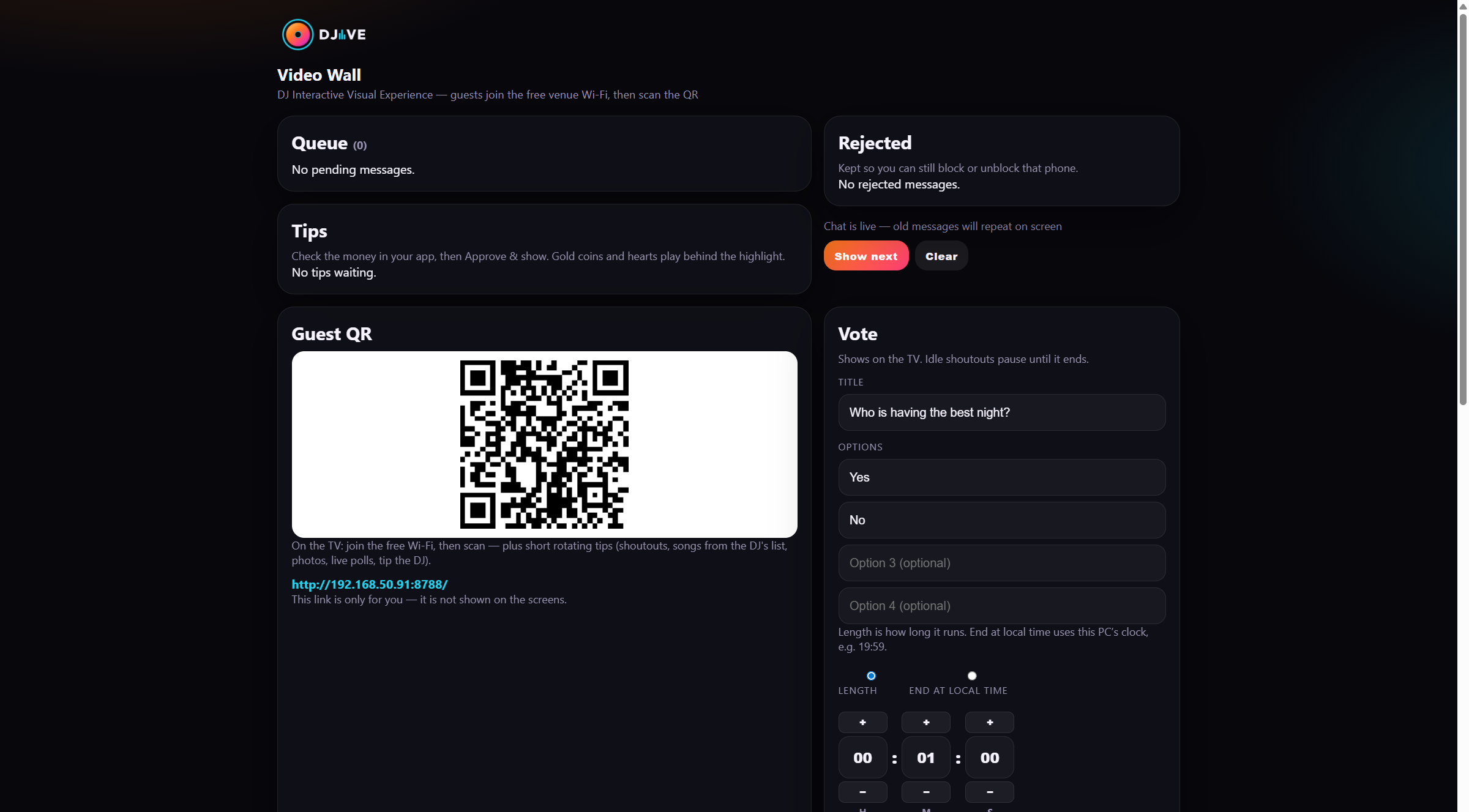
- The booth has its own window, with the DJIVE logo on the taskbar. Approving, starting a game, and the other booth buttons keep the TV window up.
- Browser moderator at
http://127.0.0.1:8790/modif you want the same tools on a laptop or tablet in the booth. - Queue lists are rows. Right-click a row to approve, refuse, or block. Yes and No replace tick boxes.
Messages
- Type a name and message, or add a photo, then Show on wall. It jumps to next on the big card.
- Guest posts wait in the list. Approve and show is green. Reject and block are red.
- Hold turns green and takes the big card and the side chat off the TV until you press it again.
- Trigger Background plays a backdrop on its own, with no shoutout under it.
Requests
Columns show when the request came in, the song, and how many asked.
Alerts off stops the request pop-up. The tab still counts them.
Lock list keeps each row where it is until you turn it off.
Use linked databases on means phones search the libraries you left on. Off means they type the song.
Mark Played or Refuse, then clear the row when you are done.
Live Screen
Live. Is everything currently on the wall. Show a favourite again, remove one, view the photo, or block.
Rejected. Keeps a post you bounced too fast. Restore it, or block that phone from here.
Tips
- Guest tips wait here. They do not auto-post.
- Check the money in your app, then approve so the gold shout hits the wall.
- Basic and Registered grey this tab with Purchase Pro plan to unlock.
Clients
- Every phone that opens the guest app gets a row and stays on that row.
- A pill shows Live, Idle, Disconnected, or Blocked. The page and what they are typing sit on the card.
- A phone that used the venue PIN shows Manager. A phone that used the Control PIN shows Admin. Block that phone and both of those logins stop until you unblock it.
- Counts along the bottom stay after the posts leave the queue. Messages, photos, requests, karaoke, polls, games, and likes.
- Right-click a row to Block or Unblock that phone. The remote Clients list shows the same card.
Vote
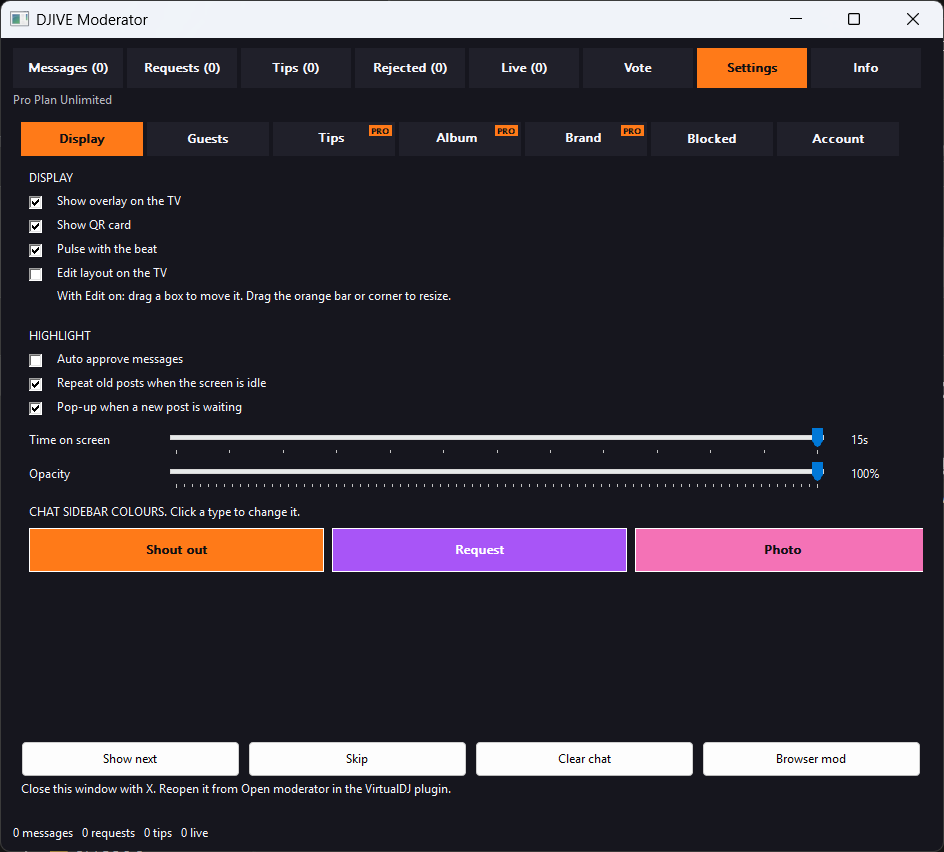
- Title, 2–4 answers, and a length or an end time on this PC.
- Pro can add a picture. Start and Stop. Bars fill on the TV while people tap.
- Basic has no polls. After the Registered poll is used, start waits until next week.
Games
Pro only. One game at a time. The games page has what to do for each one.
Pub Quiz
Up to 10 rounds. Type your own questions, or load them from Open Trivia. Open Trivia needs the internet. Bingo. 15, 30, 75, or 90 numbers. Each phone gets a card. Confirm claim or False claim from the booth. Event is for a night with more than one game. People join once, then each game deals that game's tickets. Music Bingo. Build from a folder of songs and videos on this computer. A video plays on the TV. Guests tick what they hear. Geo Guesser. A photo on the TV, a pin on the phone. The lowest total distance wins. A Mapillary token switches the photos to street views. Open the Box. One player and you. They open chests. You show an offer. Accept and Reject sit on their phone. Raffle. You draw the tickets. Phones watch the TV. Prize wheel. You fill the wedges and spin. Chat names the prize. You hand it out. Race Game. Runners you pick from the emoji grid. The winner’s lane lights up. Community Touch. Snake, Pong, or Breakout. Nobody joins. The room steers from the phone, and the TV shows the score.
Music Player
Plays songs from a folder on this computer. It does not sign in to a streaming service.
- Choose library in Settings reads that folder and every folder inside it.
- Right-click a folder and choose Play folder, or right-click a playlist and choose Play playlist. The top of the player says which one is on.
- Play music, Pause music, and Resume music sit at the bottom of the left bar.
- Match song levels is on. Process new tracks, or Process all tracks, saves how loud each song is, and fills the name, artist, genre, and BPM when it finds a clear match. A green tick means that song is done. NEW means it still needs a pass. Right-click a song to process just that one, or to edit those details.
- Play song video on the wall is off until you turn it on. On replaces the background with that song's video. A game still takes the screen.
- The music pauses while a game that needs sound is playing, such as Music Bingo or a quiz with a song, then comes back.
- Up next shows the song that will follow. Refresh picks a different one and leaves the current song playing.
- Right-click a song and choose Play next to make that song the next one. On the remote, hold the song and choose Play next.
Remote control
The Control PIN is on the booth. Give it to the person running the night. On the guest page they open remote control, type that 5-digit PIN, and turn the phone sideways. The same QR as the room is enough.
The remote follows the booth. Messages, requests, games, music, clients, and settings are the same controls.
Full screen sits above Leave. It hides the browser bar where the phone allows it. Exit screen brings the bar back.
Hold a slider before you drag it. A short move scrolls the page.
Yes is green and No is red for the side that is on. The other side is grey.
Hold a song in the music list and choose Play next. Refresh beside Up next picks a different song.
On Race, Runners lists each lane, then the emoji grid. Green is already used. Gold is the runner you are changing.
On Raffle, each ticket stays on one line: the colour, the two numbers, and remove.
Settings
UI size. Smallest, Small, Standard, Large, and Largest. Standard is how the booth opens.
Screen. The TV window, Edit layout, highlight time, Big photo, Time bar, Fly from the chat, themes, and the pulse.
Guests. Language for the night, which rows show on the phone, wall rules, and blocked words.
Requests. Each found library, Yes or No, and Set location.
Brand. Pro logo, website, and the photo behind guest phones.
Network. DJive Standard on the venue Wi-Fi, or Online when that Wi-Fi blocks phones.
Live. A short line and a watch link on DJive.co.uk, Live. DJIVE does not host the stream. Closing the program takes you off.
Account. The same email as DJive.co.uk, or the Pro key.
Background. Open Custom Background Folder. Pictures and videos in that folder play on the TV with the DJIVE background. Picture time is 5 to 120 seconds. A video plays through, then the next file starts. New files are picked up on their own.
Info
- Update shows the version on this PC and the version on DJive.co.uk. Tap Update and the program installs the new build, closes, and opens again.
- Help, features, and changes sit on the same Info pages.
Plans
Basic
(no account) every week: 25 shoutouts, 25 song requests, no live polls, and live reacts. The wall, the QR, and the booth stay on.
Registered
(DJIVE account) every week: 200 shoutouts, 50 song requests, 1 live poll, and live reacts. After the weekly poll is used, Vote waits until next week.
Pro
is £10 for one month, or £10 a month until you cancel. A year is £110 for 365 days and does not renew. That saves a month against twelve payments of £10. Unlimited shoutouts, requests, and polls, plus guest photos, Tip the DJ, word animations, a picture on a poll, pub games, and your own logo and guest-app look.
Business Whitelist is the company plan. £24 a month covers 3 venues at £8 each and renews until you cancel. Each extra venue is £10 a month until you cancel that venue. Each linked computer is Pro, with your business name and logo. The venue panel opens on DJive.co.uk after you pay. Screen backgrounds on that panel take a picture or video, such as an advert. Add image or video puts it on one venue. Add to every venue puts the same file on every venue. Linked computers download it the next time DJIVE opens. Remove, or Remove from all, deletes that file on the linked computers and the TV stops showing it. Pictures and videos copied into Settings, Background on a computer stay on that computer.
- Sign inSettings, Account. Same email as DJive.co.uk, or paste the key created when you pay.
- One PCA normal Pro key is on one computer at a time. DJIVE Standalone and the VirtualDJ plugin on that computer share the sign-in. Unlink that computer from Account on DJive.co.uk to move it. Business Whitelist covers 3 venue computers at £8 each, then £10 a month for each extra venue.
- ChecksThe program checks that key. If it is not active, the wall drops back to Registered while you stay signed in, or Basic if you log out.
Live voting
Run a poll from the booth. The bars fill on the TV while people tap.
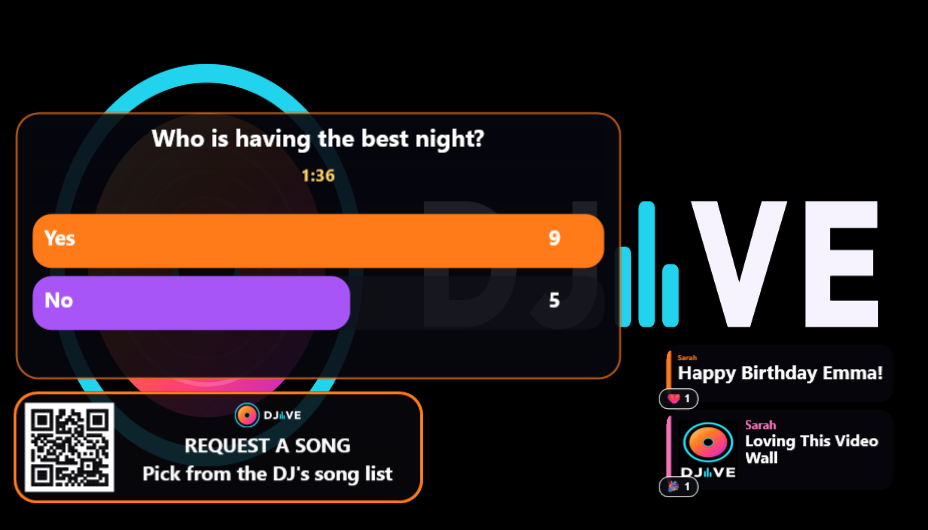
Custom title, two to four answers, and a countdown.
Optional picture on the poll (Pro). Picture on the left, title and bars on the right. Same on phones.
One vote per phone, or turn on vote more than once.
Unique winner: gold WINNER. Draw or no votes: red NO WINNER. Then the result drops into chat and stays.
While a vote is running, a game stays off until you stop the vote.
Tipping
Set this up once in Settings, then guests can buy you a drink from their phone.
Paste the links
you can add PayPal and Bank so people have more than one way to pay:
PayPal. Copy your paypal.me/YourName link.
Monzo, Revolut, or Starling. Paste the pay-me link from that app.
Guests pick an amount, can leave a short message, then tap Tip DJ with PayPal or Tip DJ with Bank. DJIVE opens the link. It does not take the money or save payment details.
- Queue for the wall: the tap lands on Tips. You confirm it, then the gold shout hits the wall with coins and hearts.
- The wall shows the tap you approved. Check the money in your app before you approve.
Word animations
If a shoutout or photo caption contains these whole words, a backdrop plays for as long as that highlight is up.
Requests and tips do not trigger them. Effects sit behind the panels so people can still read.
Only one backdrop at a time: the first trigger word in the message wins.
A tip highlight rains gold coins and hearts. A venue notice plays flames.
If that post is already hot, those backdrops stay off and fire emojis float up instead.
Turn background animations off in Settings, Screen, Display when you want the wall quiet.
Confetti cannons from both sides
Hearts float up like balloons
Peaches and eggplants chase around the screen
Glasses burst up with streamers
Gold stars shoot up, hang, then fade
Disco balls and sparkles
Kiss marks drift across
Rings rise like bubbles with white sparkles
Flames lick up from the bottom
Flames plus lightning snaps
Yellow bursts from both sides
Slow blue rain
White flash rings expand and vanish
Gold coins rain and bounce
Shot glasses and limes bounce in from the sides
Music notes float up
Little houses drift with sparkles
White flakes fall
Circles rise
Colourful balloons float up
Pink petals fall
Rainbows arc across the screen
Gold coins
Cyan and pink sparks
Rockets shoot up, then burst
Rain and lightning
Red hearts rise
Gold sparks shoot up
Purple stars drift
Trees, Santas, snowmen, candy canes, and snow
Ghosts, pumpkins, bats, and dripping blood
Suns, clouds, and beach umbrellas
A clock, party hats, and rockets
Horses and riders circle the screen
Gold stars along the top
White sparks across the screen
A blue wave runs across
Only the first trigger word in a message plays.
Night
Bad words. Settings, Guests, Blocked lists them. Get list saves the list on this PC. Stars replaces each letter of a bad word with * on the TV. The booth keeps the real word.
House rules
Settings, Guests, Wall rules. One line each. The phone asks before the first send. I agree turns green. Clients shows a tick once that phone has agreed.
Hold
On Messages. Green means the big card and the side chat are off the TV. New messages wait until you press it again.
Wall on screen
On the bottom of the booth, next to the update line. Green means the wall is on the TV. Press it and it turns red, Wall off screen. The QR, chat, highlight, vote, game, and backgrounds leave the TV. Press it again and they come back. The program stays open.
Trigger Background
On Messages, pick a backdrop and press Trigger Background. Rainbow, Fireworks, Christmas, Halloween, New Year, Summer, and Western each play on their own.
Countdown
Name it, set the time, write the line. At zero it jumps the queue.
Night champion
Quiz, bingo, and races can add into one score. Show champion posts the table.
What you can turn off
Nothing hits the TV until you say so, unless you turn auto-approve on for shoutouts and photos. Tips still wait on the Tips tab.
Click a guest photo in the queue to check it full-size first.
Block a phone if someone is a problem. Unblock later from Clients or Settings.
Turn off photos, requests, karaoke, or messages for a quieter set.
Guest photos land in your album folder on this computer.
Closing DJIVE Standalone ends the night. Phones see a thank-you that the wall has finished.
Open the program
- 01Download the setup from DJive.co.uk, Standalone download, and run it. It installs for this Windows user and adds a Start menu entry.
- 02If a setup card appears, tap Install Node and wait for the bar. The wall then opens.
- 03Drag the live window onto the venue screen. Double-click the picture to fill that screen. Leave the booth on the computer you are working from.
- 04Phones join the venue Wi-Fi and scan the QR. If that Wi-Fi blocks phones, choose Online in Settings, Venue, Network, then Apply Change and Restart Server.
- 05Open Info, Update to see this PC version and the DJive.co.uk version. Tap Update. The program installs the new build, closes, and opens again.
Sign in from Settings, Account with the same email as this website, or paste your Pro key.
On the night
People use the phone they already have. They join the venue Wi-Fi and scan. The join address stays off the wall.
Song requests can search VirtualDJ, Serato, rekordbox, Engine DJ, and Traktor on this PC, or the guest types the title.
A new post is big first. The side chat keeps the rest of the night.
A vote, a word on a shoutout, or a pub game gives you something to say on the mic.
Approve, refuse, played, block, next, and skip are in the booth.
DJIVE is short for DJ Interactive Visual Experience.